Use Any Apple Home Lamp as a Wake-Up Light
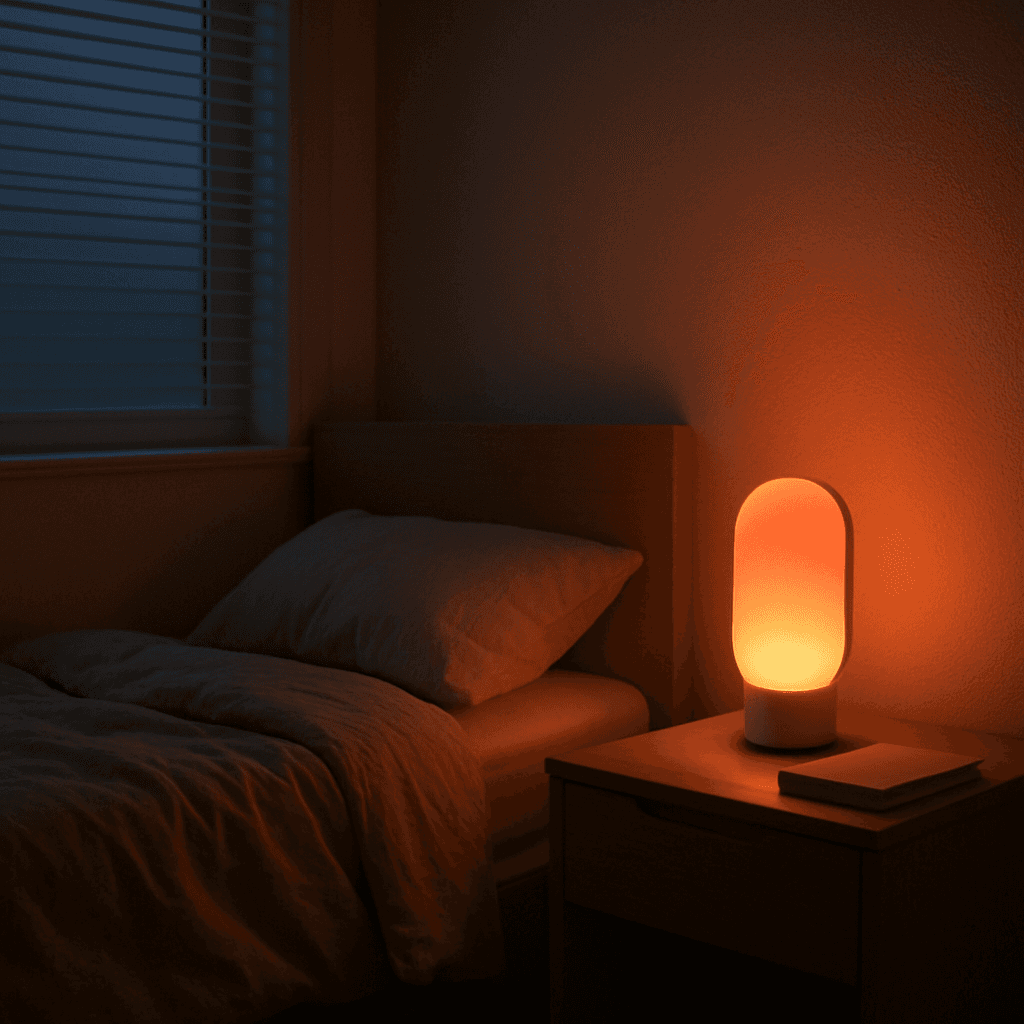
Especially during the darker months, many people struggle to get out of bed. A wake-up light can help with this. With a Workflow and Controller Hub in Controller for HomeKit, you can easily achieve this using any Apple Home-compatible lamp. For an enhanced experience, do not miss the bonus tip at the end, which explains how to automatically start your wake-up light with your alarm via a Siri Shortcut.
Start Event
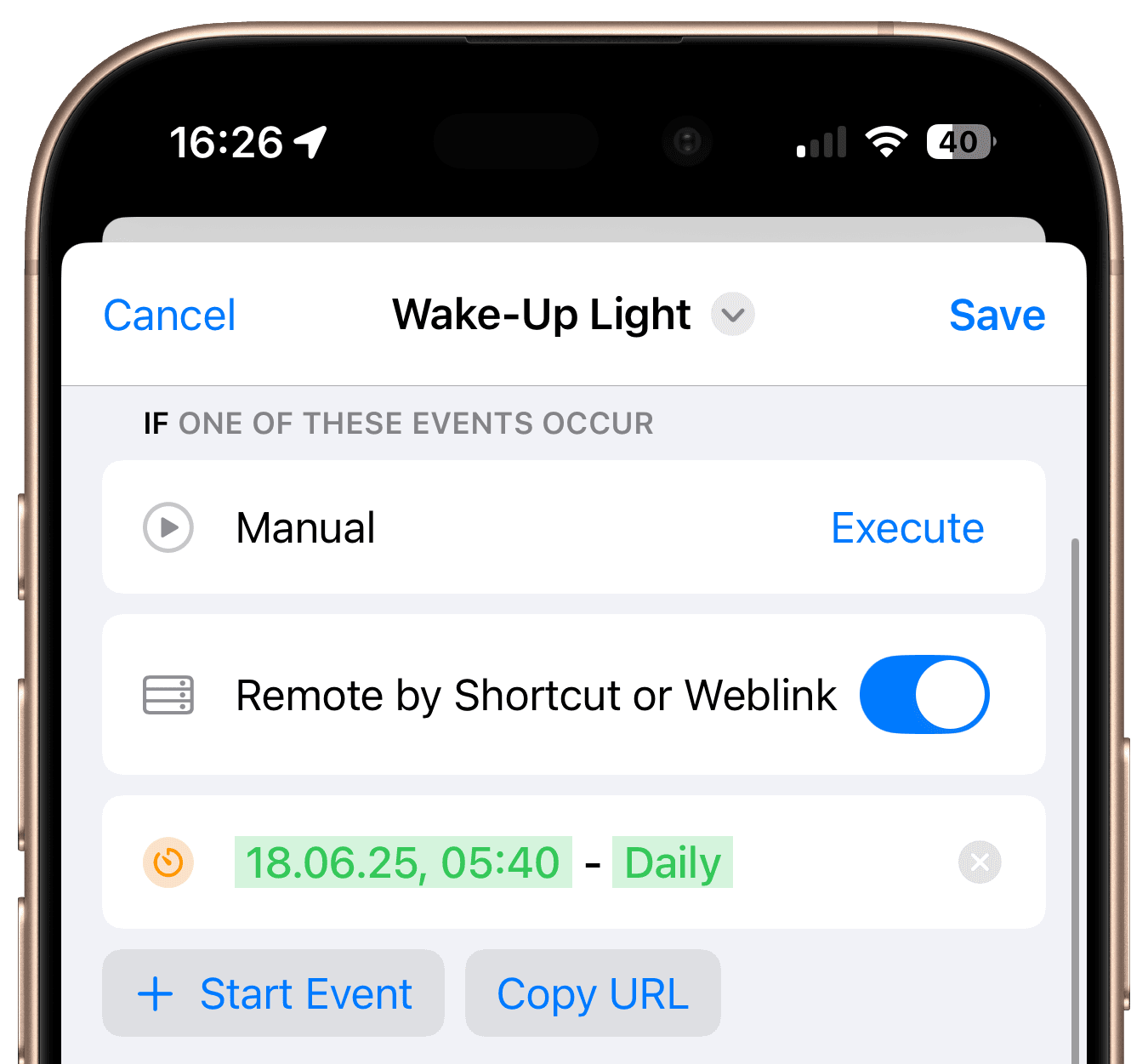
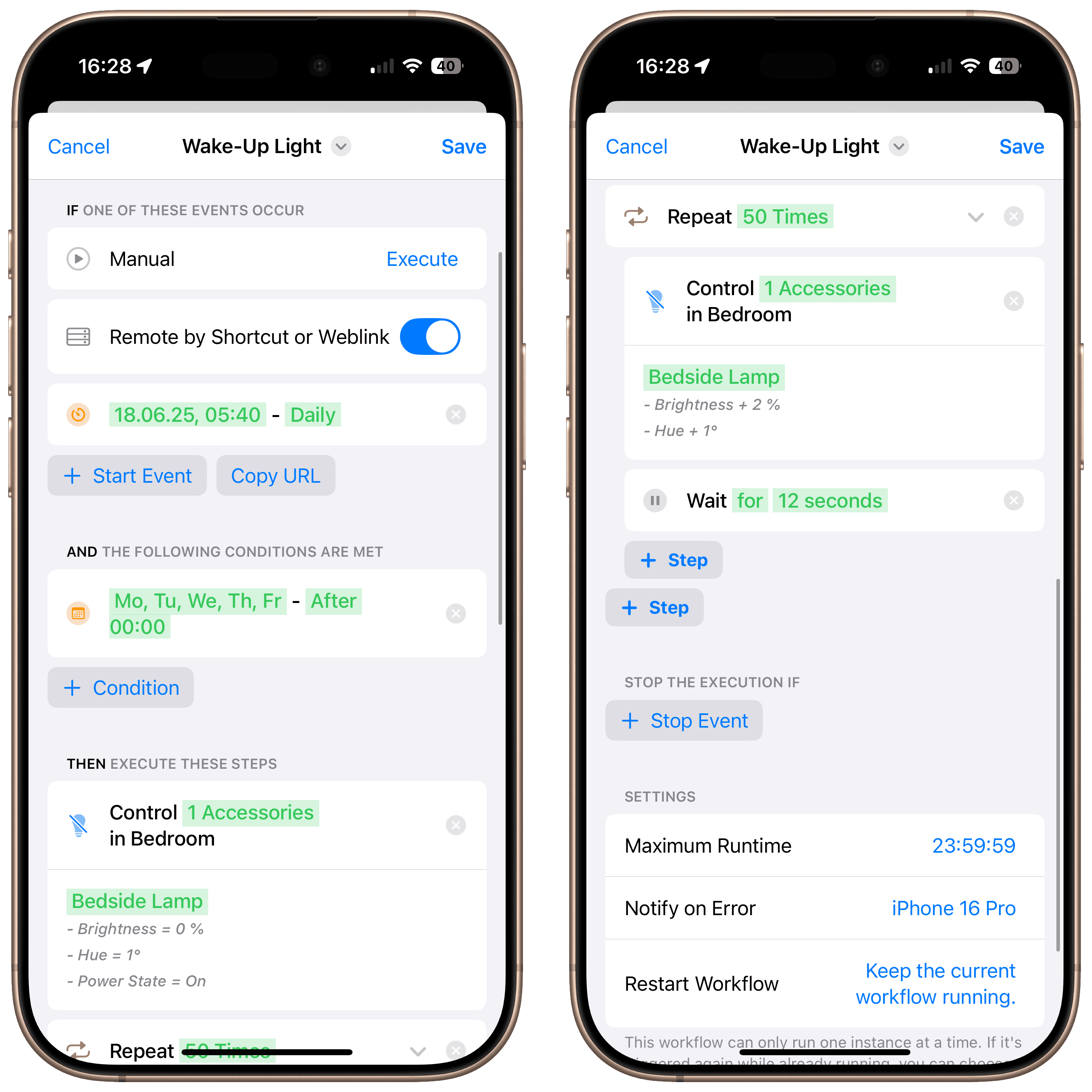
First, add a start event with the time when the wake-up light should activate and set the repetition to "Daily". In our example, this is every day at 5:40 AM. The specific weekdays on which the wake-up light is active are defined in the conditions.
Condition
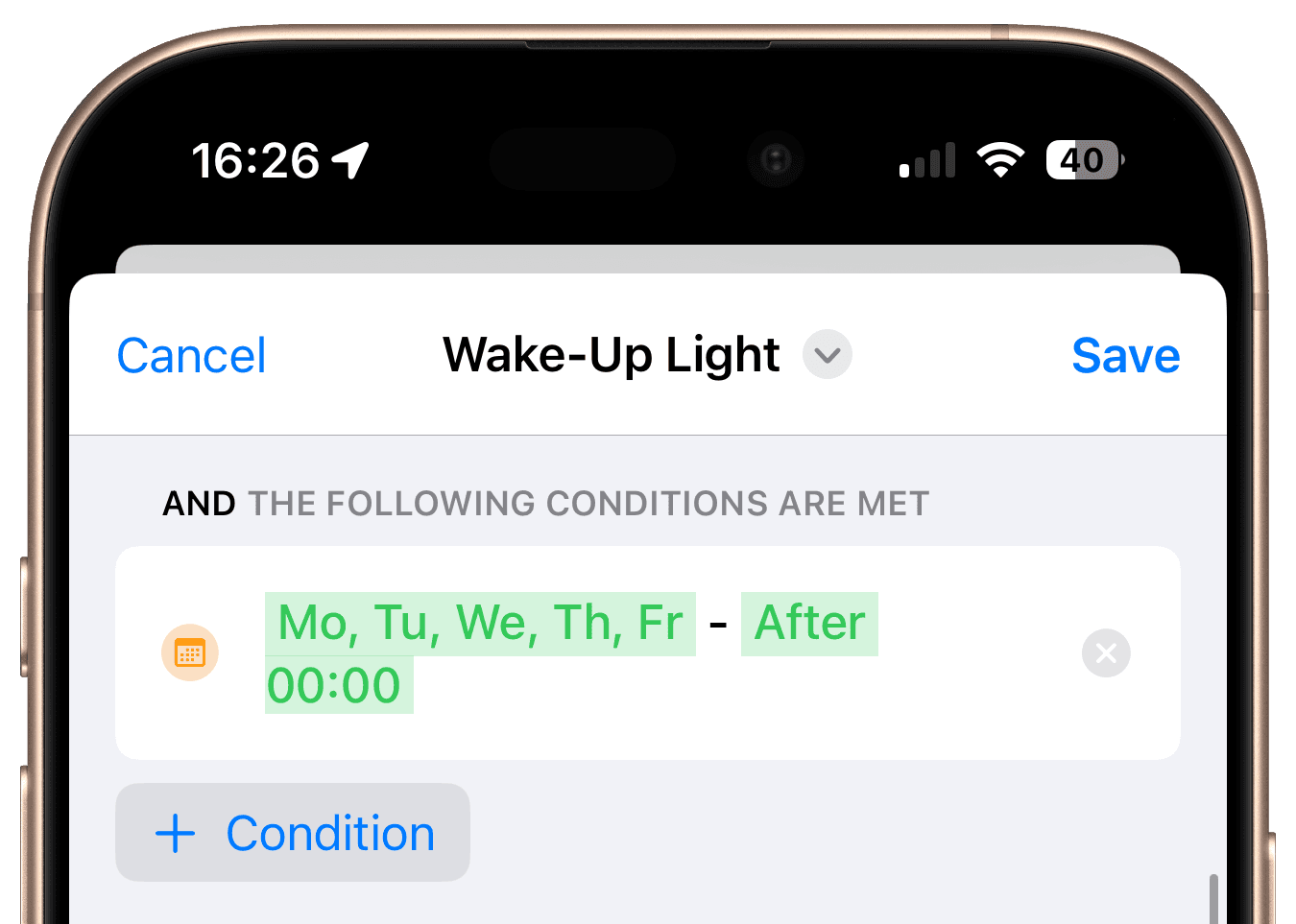
As a condition, we add another schedule and set the time to "After 12:00 AM." Then, we can specify the weekdays, in our case Monday to Friday.
Steps
Add the Step "Control Accessory"
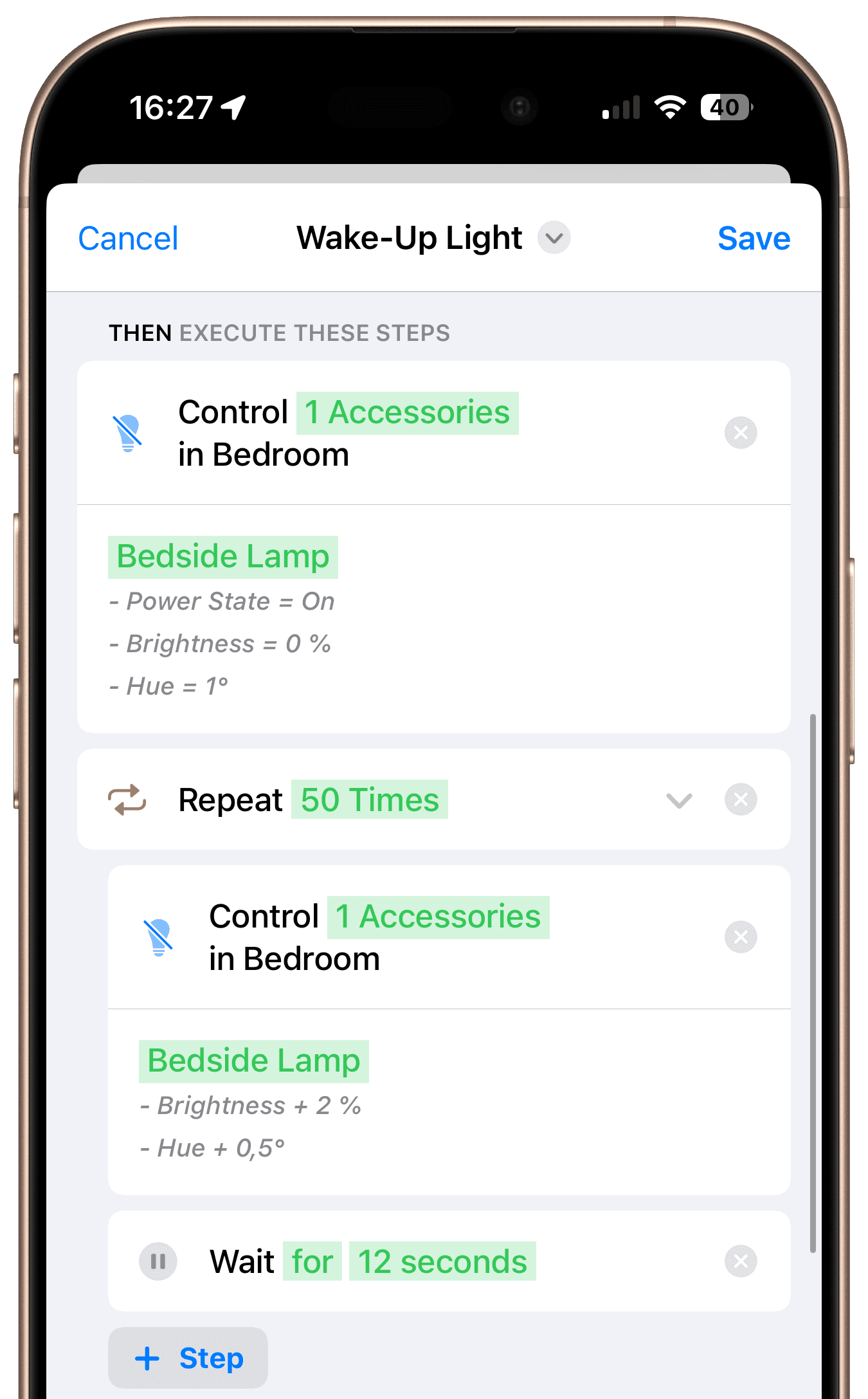
Start by adding "Control Accessory", select the lamp, and set the power state to "On", the brightness to 2%, and the color to a warm red hue, such as 1 degree.
Add the Step "Repeat"
Then, add a "Repeat" step and set it to repeat 50 times.
Add the Step "Control Accessory"
Add the "Control Accessory" step inside the repeat loop, select the lamp again, and set the brightness to "Increase by 2%" and the hue to "Increase by 1 degree". This makes the lamp gradually brighter and shifts the color from red to orange to yellow.
Add the Step "Wait"
Then, add a "Wait" step and set it to 12 seconds. This way, the lamp gradually gets brighter over the course of 10 minutes.
Final Overview
From Monday to Friday, the wake-up light turns on at 5:40 AM and gradually increases to 100% over 10 minutes, transitioning from red to orange to warm white.
Bonus Tip: Automatically Start Your Wake-Up Light with Your Alarm
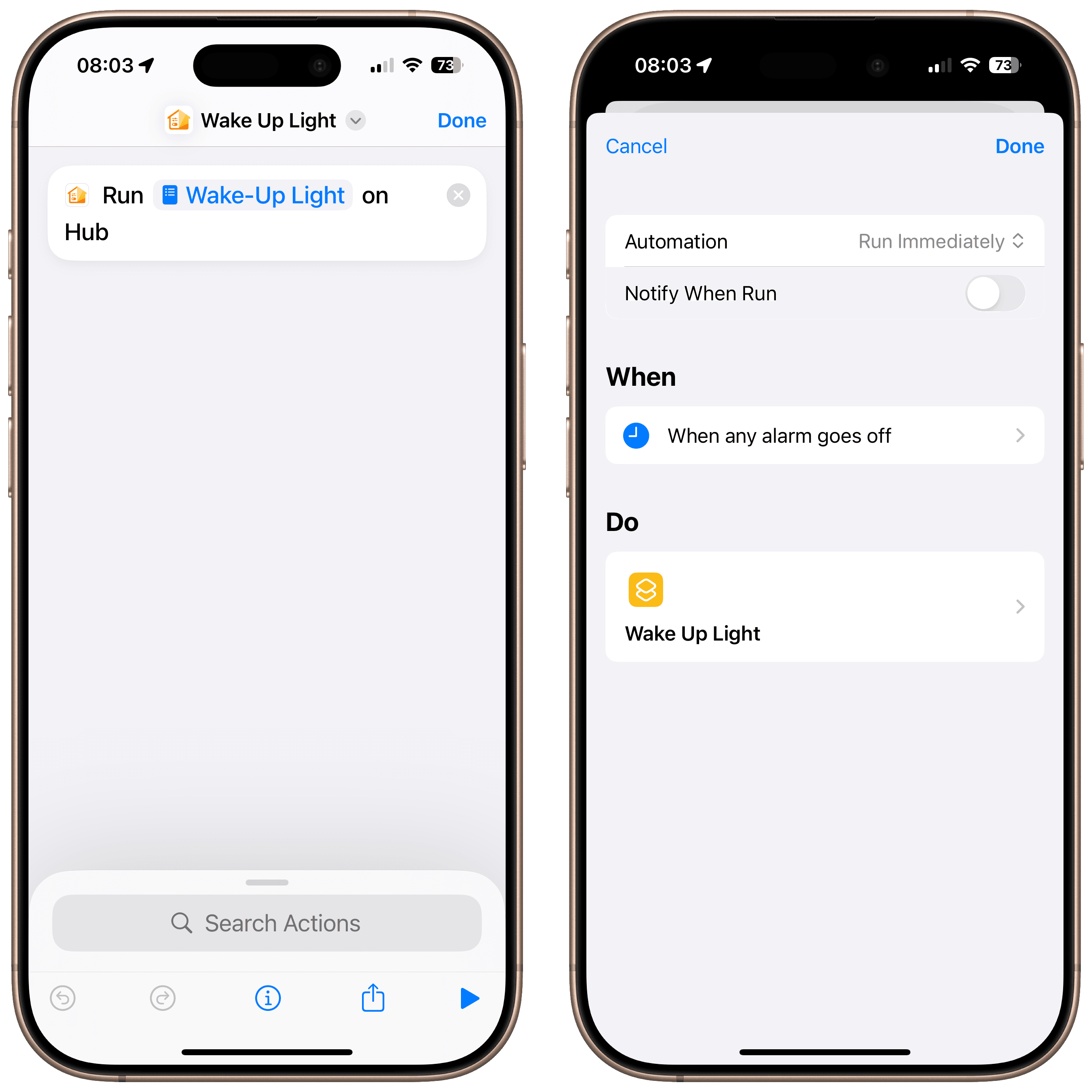
Create a Siri Shortcut that includes the "Run Workflow on Hub" action from Controller for HomeKit and select the wake-up light workflow. Then open the Automation tab in the Siri Shortcuts app and create a new personal automation triggered by your alarm, specifically when the alarm is turned off. Enable "Run Immediately" so the workflow executes without confirmation, and select the shortcut you just created.
If you use multiple alarms on your iPhone, open the workflow settings and set "Restart Workflow" to "Keep the current workflow running". This prevents the workflow from restarting. If alarms are more than 10 minutes apart, add an extra "Wait" step at the end of the workflow, outside the repeat loop, to extend runtime.

Get Inspired
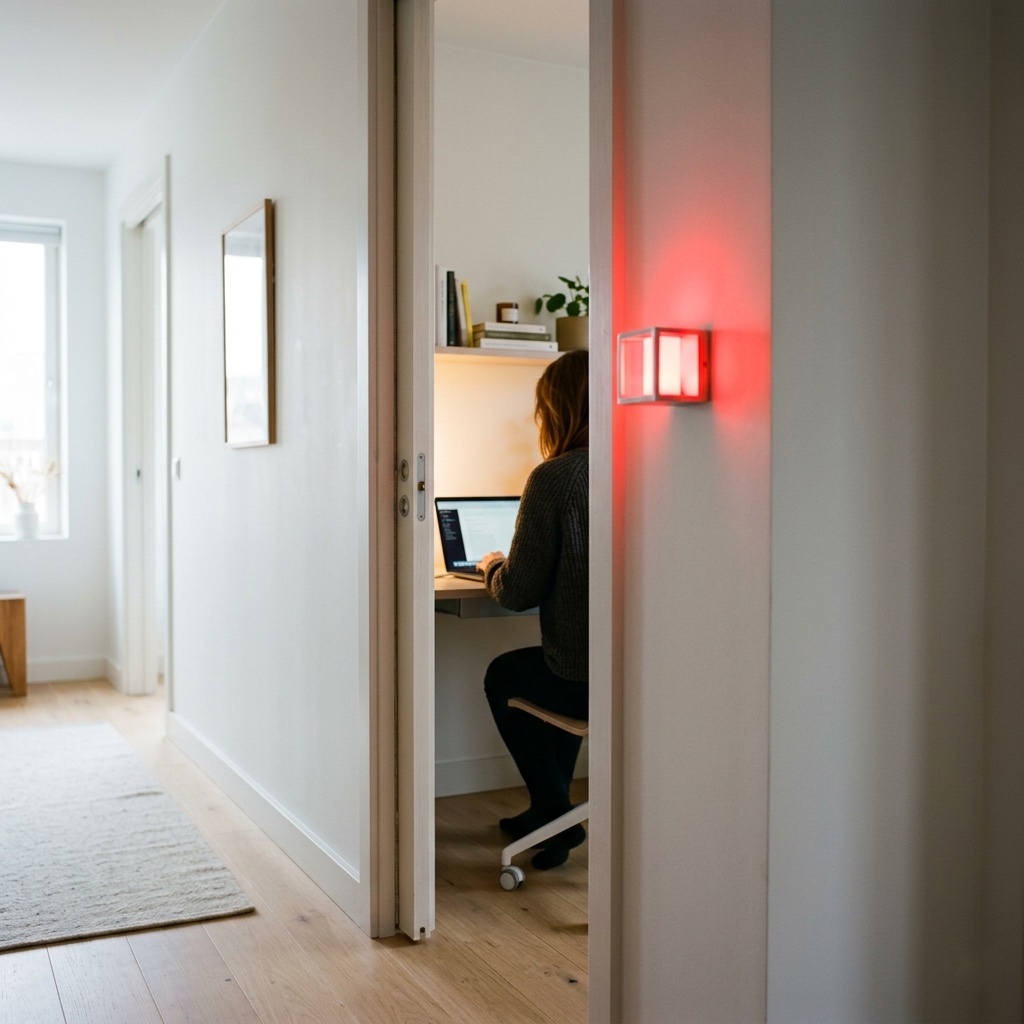
Meeting Light
Uses light color to show whether you’re in a meeting.
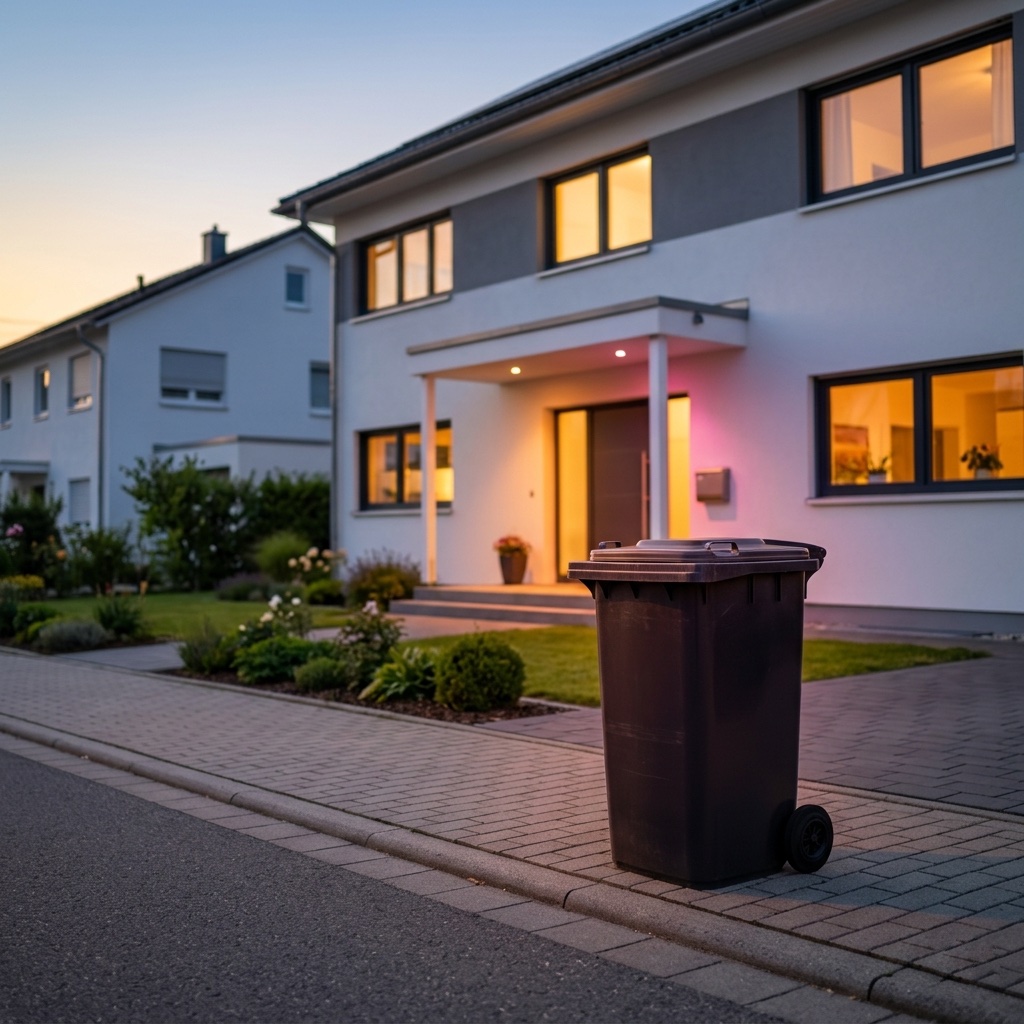
Waste Calendar
Never forget the bin again – with colored light and speech.

Carbon Dioxide Alert
Get notified when CO₂ levels exceed 1000 ppm.

Location-Based Workflow
Automate your routines based on where you are.
Laundry Done Alert
Receive a notification when your washing machine has finished.
Beat the Heat
Automatically close your blinds on hot days.
Wake-Up Light
Use any Apple Home Lamp as a Wake-Up Light.
Irrigation Schedule
Keep your garden green.
Control Lights with Multiple Motion Sensors
For large or irregularly shaped spaces.
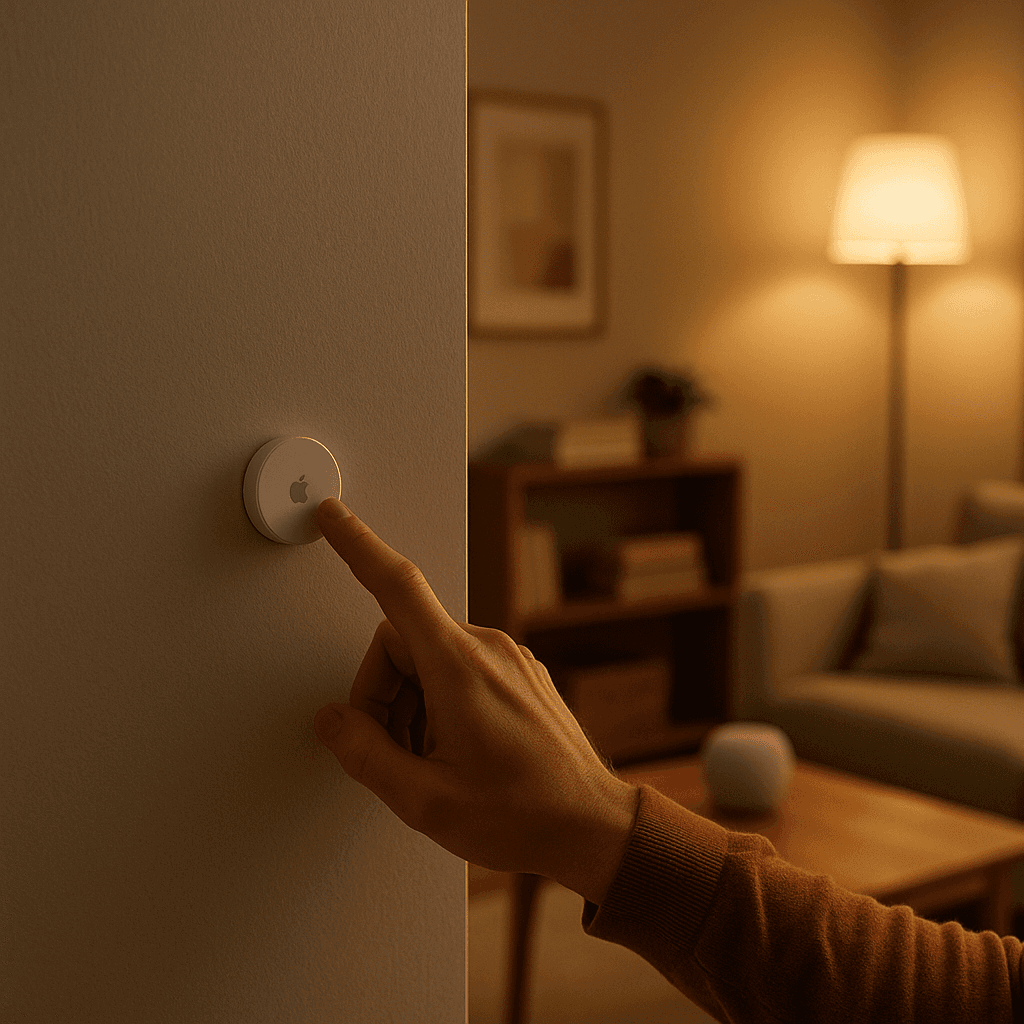
Stepwise Brightness Control via Button
Control light brightness step by step.
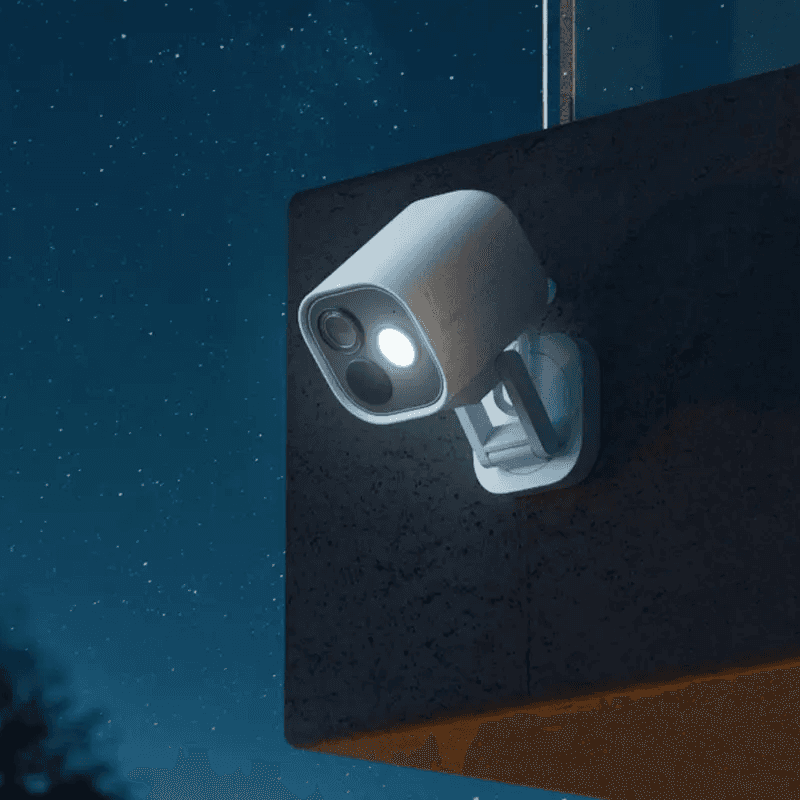
Custom Notification with Live Camera Feed
Open the camera stream instantly.
Smart Bathroom Fan Control
Make your fan truly intelligent.
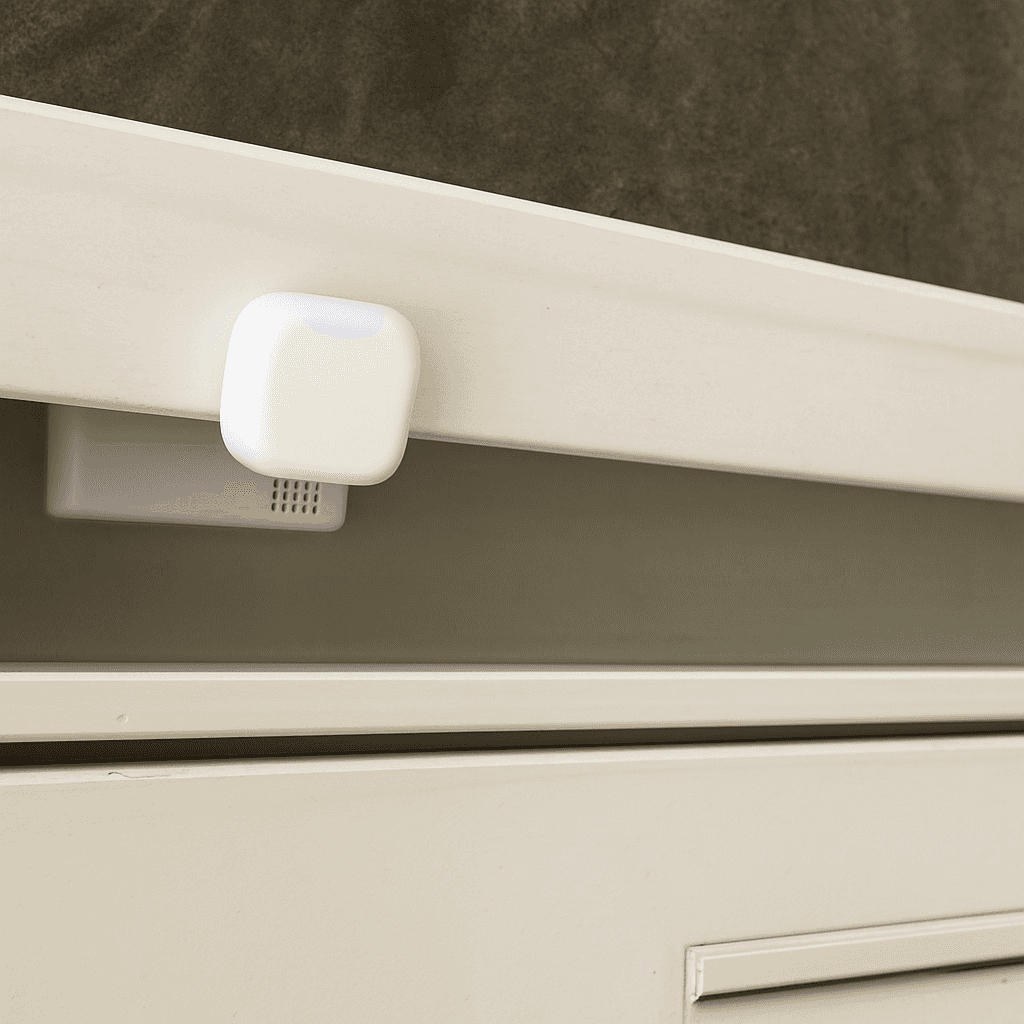
New Mail Notification
Get notified when new mail arrives.
Integrate Speakers into Workflows
Control volume, play music, or pause playback.
Battery Warning
Get battery alerts when they matter.
Sleep Timer
Use a sleep timer with Apple Home.

Execute Workflow Only Once a Day
Ensures the workflow runs only once.
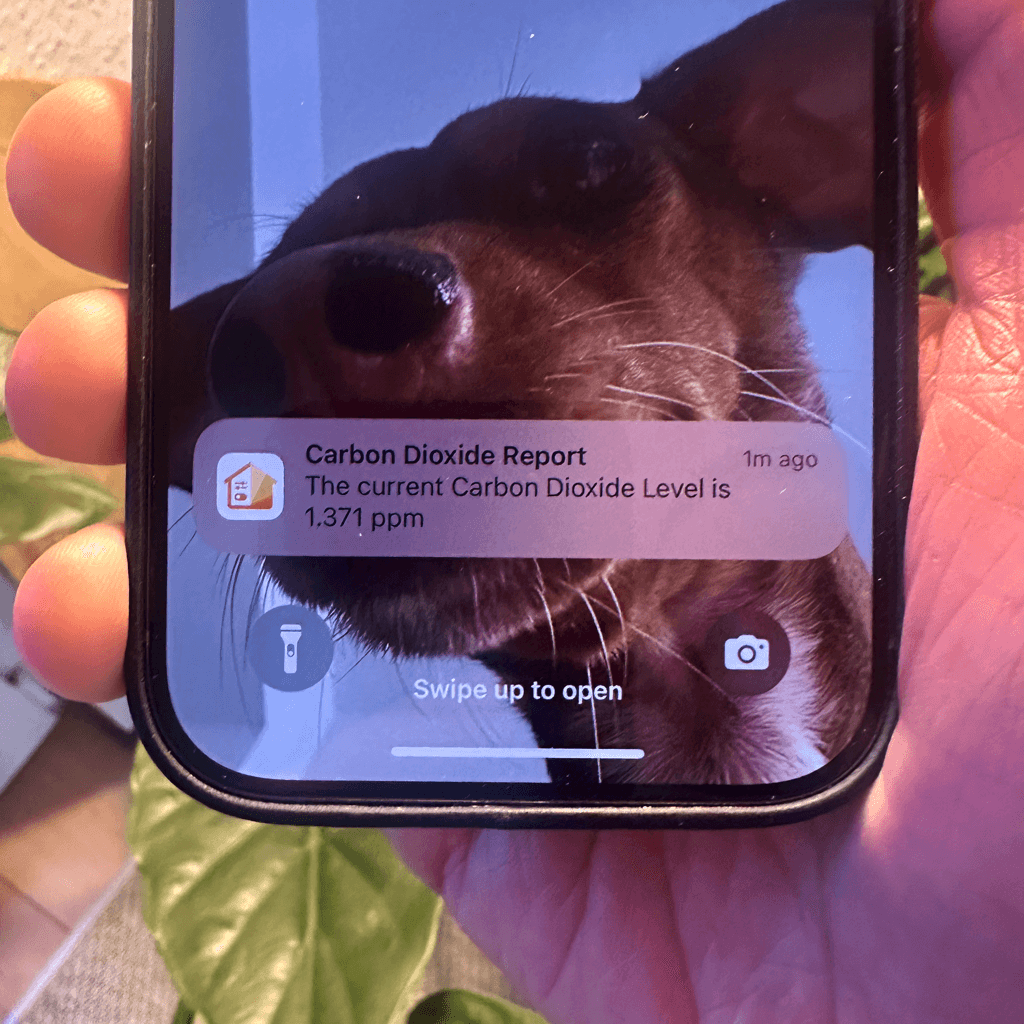
Accessory Values in Notifications
Send notifications featuring real-time accessory values.
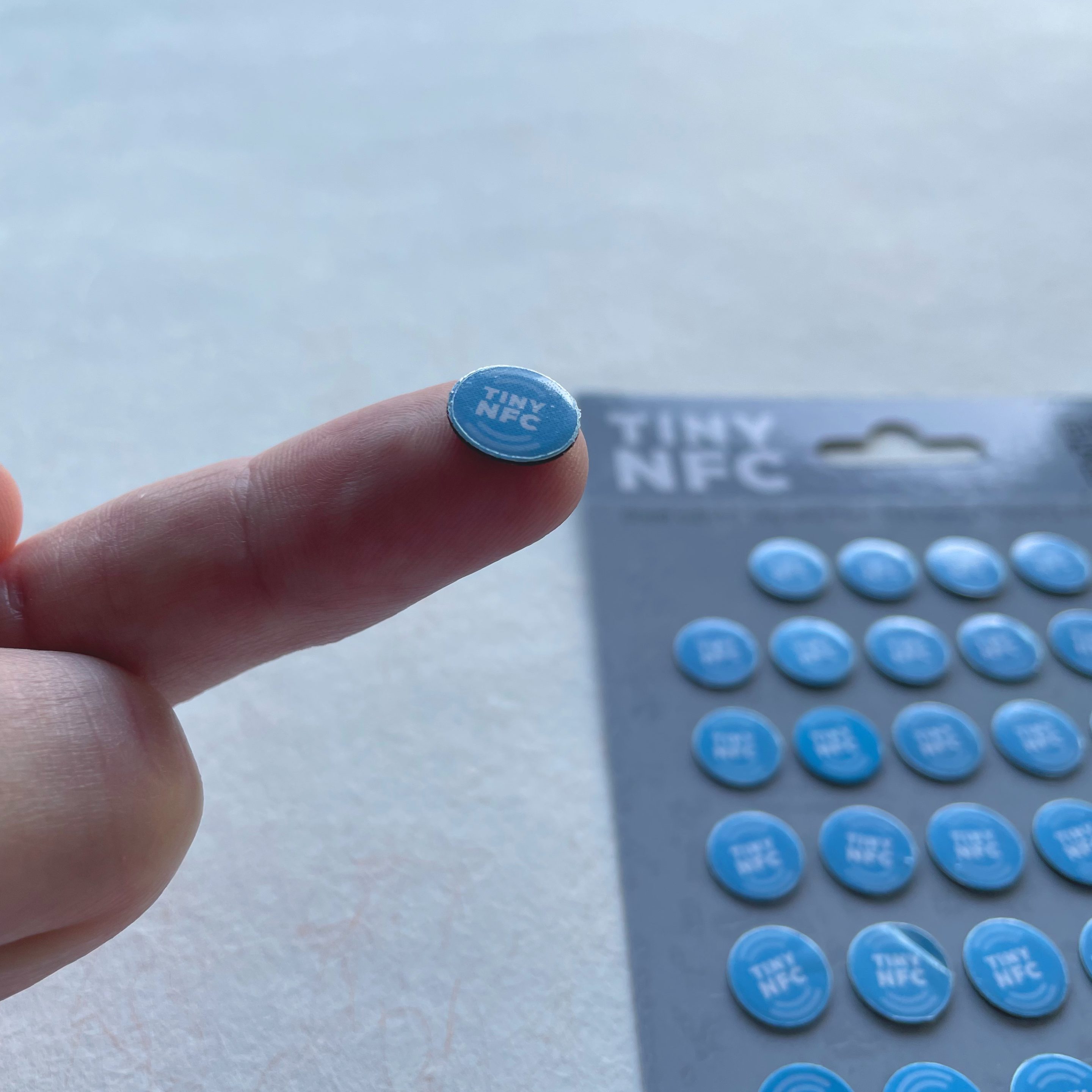
NFC Tags
Automate Apple Home Accessories with NFC.
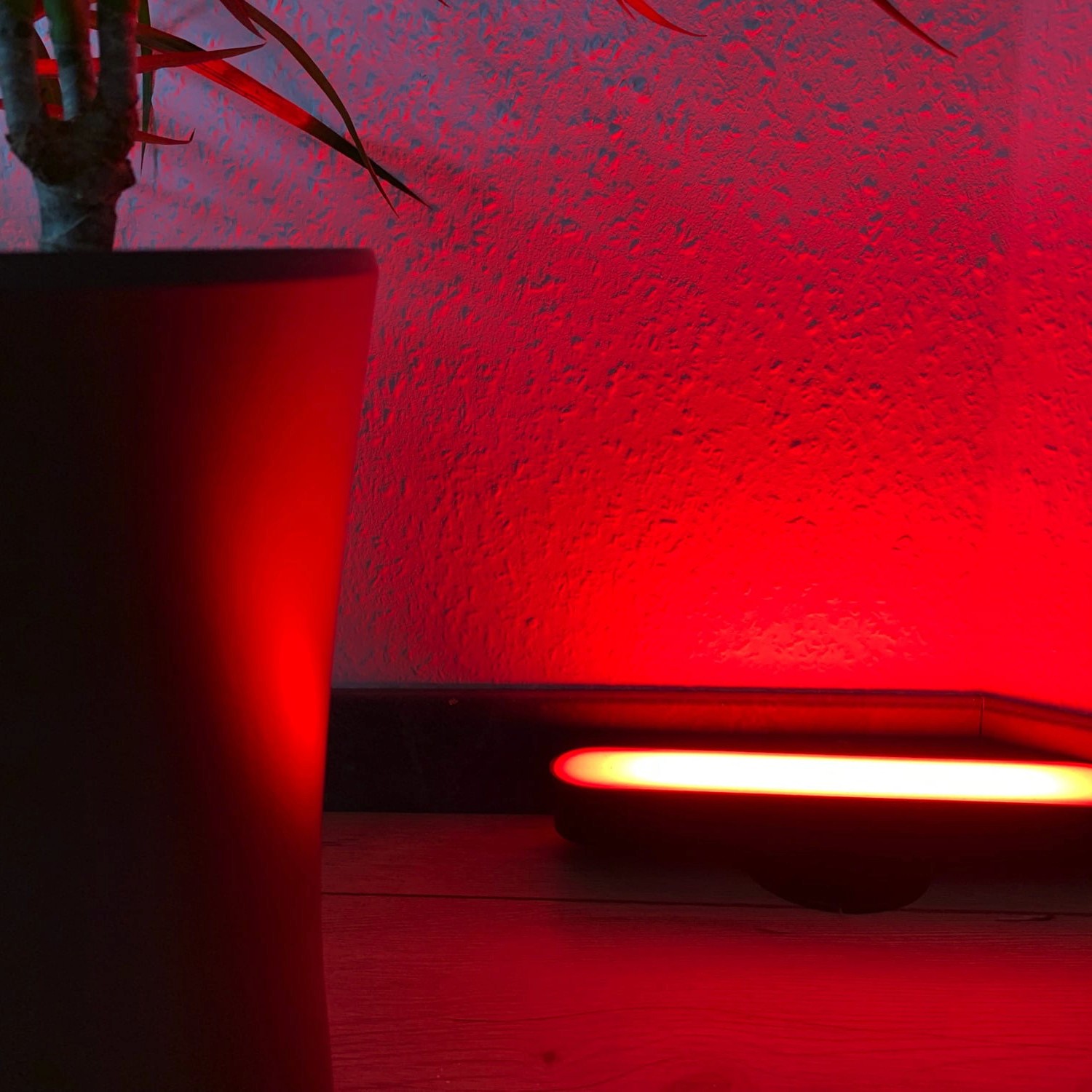
Blink Lights
Make a light blink and effortlessly return it to its original state.
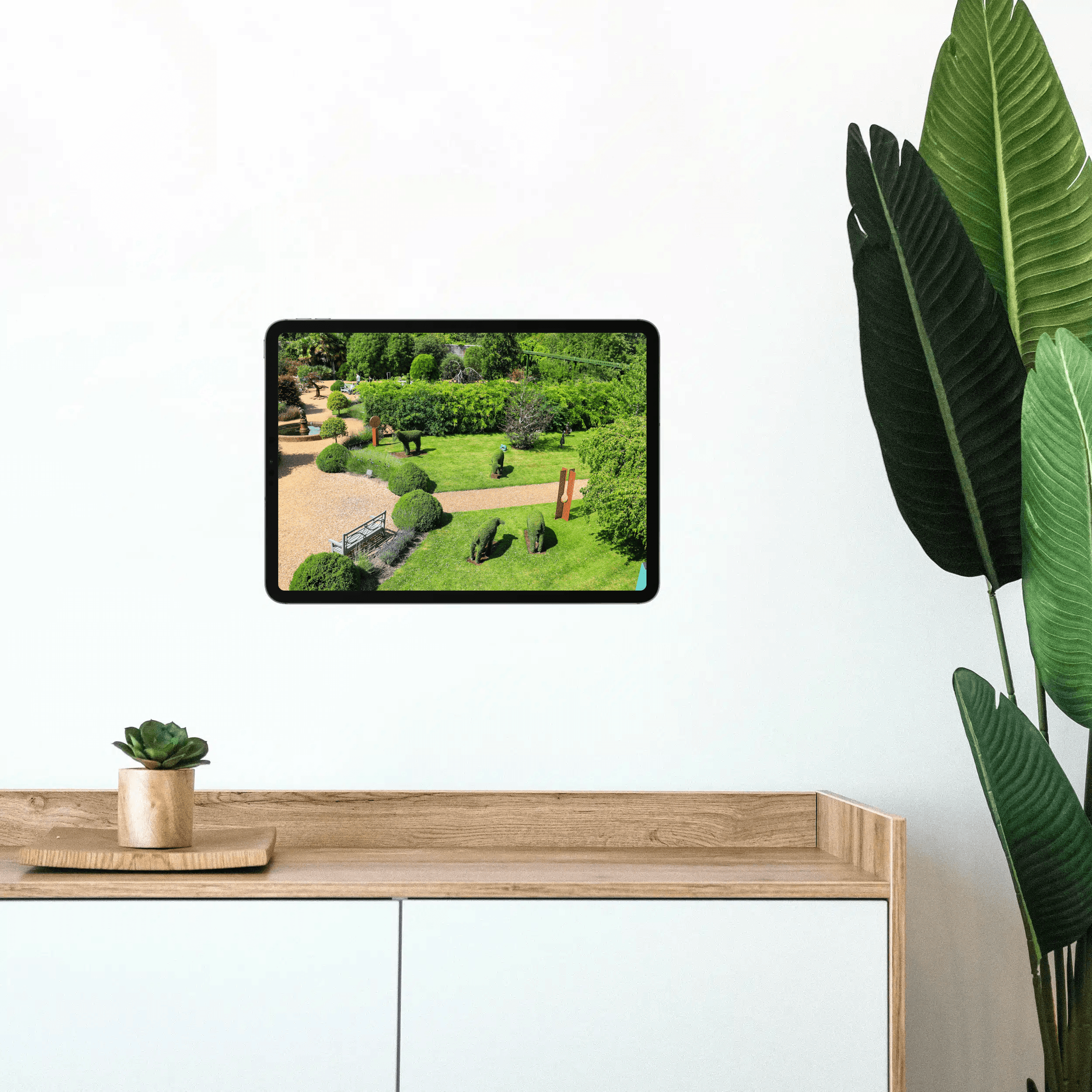
Display Camera When Motion Is Detected
Automatically display the camera livestream whenever motion is detected.
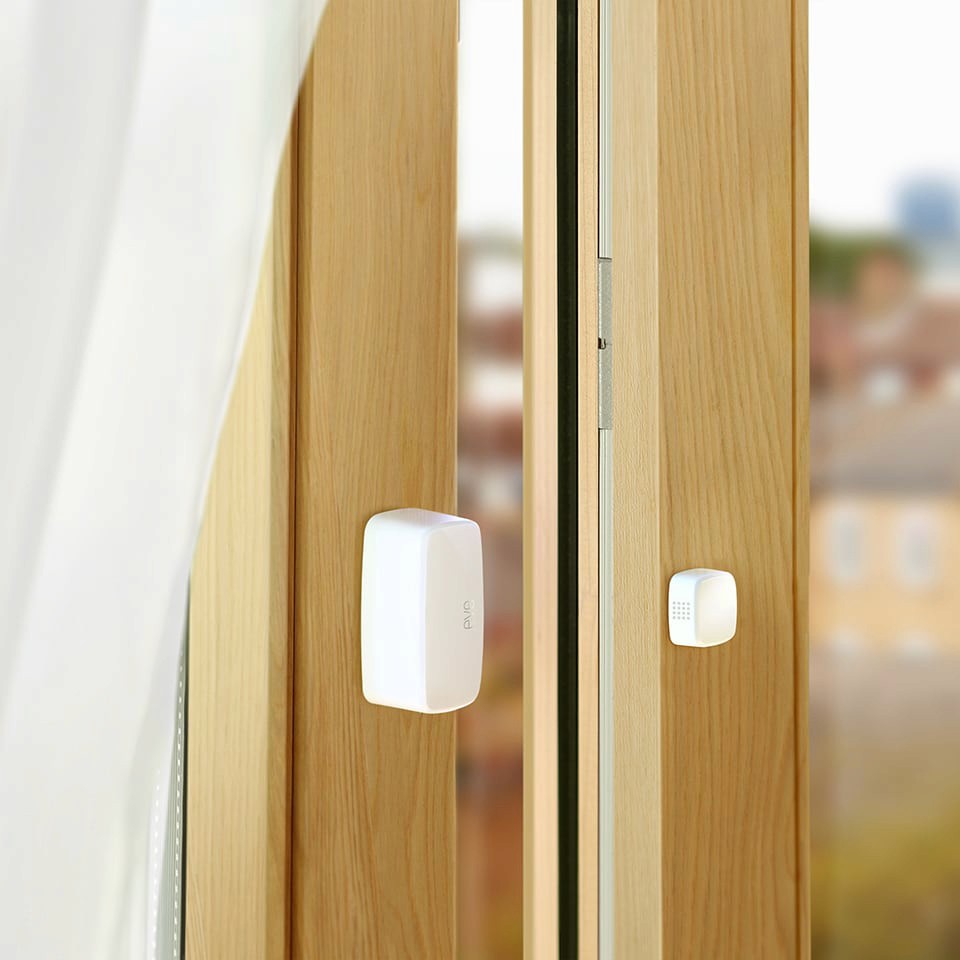
Open Window Reminder
Get a reminder if you forget to close a window after ventilating.
Toggle Lamp
Easily toggle a lamp using a single switch.
Turn Light Off Using Motion Sensor
Efficiently control your lighting with a motion sensor.