Meeting Light: Never Get Disturbed Again
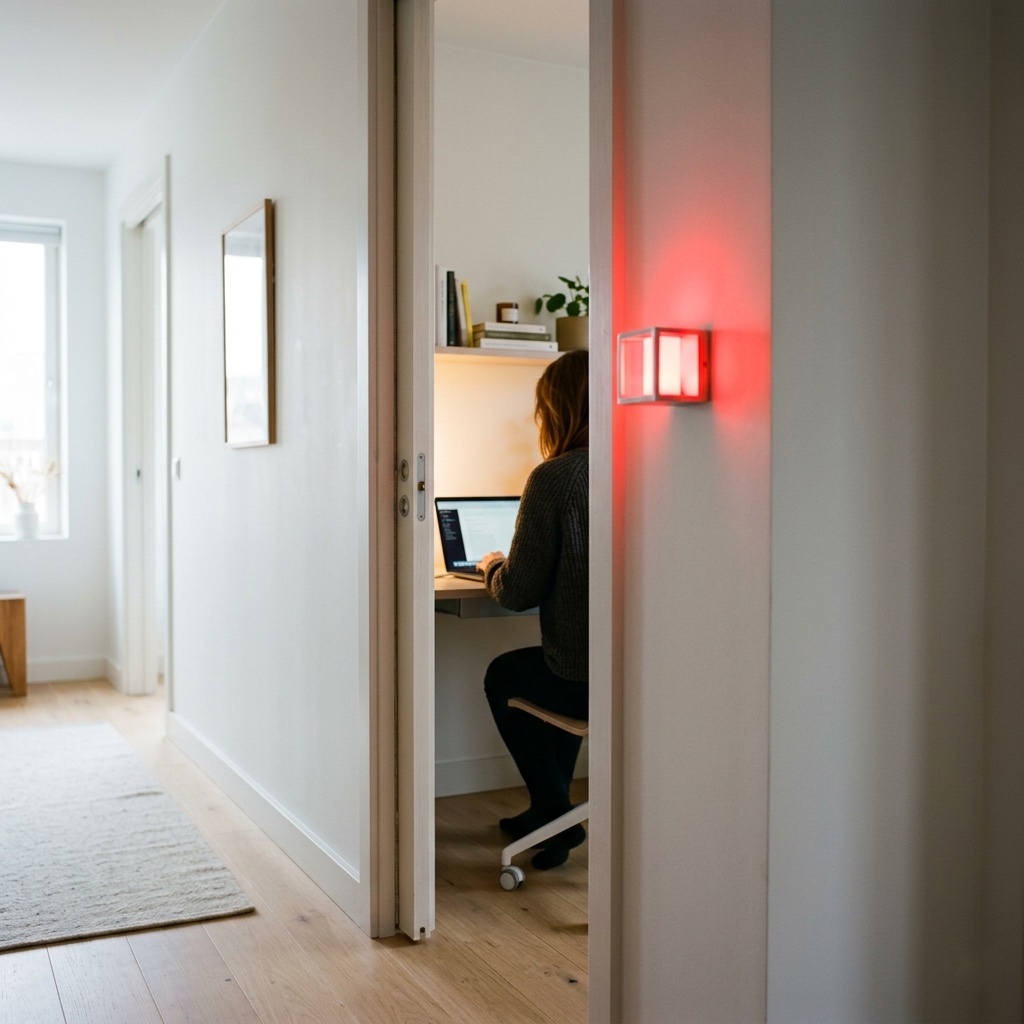
If you work from home, you know the problem: someone walks in right in the middle of an important call. A smart meeting light solves this. With a calendar workflow and Controller Hub in Controller for HomeKit, a light automatically turns red when a meeting starts and off when it ends. Since Apple Home doesn’t natively support calendar-based automations, Controller is the only HomeKit app that can do this.
Prerequisites
For the workflow to know when you have a meeting, Controller for HomeKit needs access to a calendar with your events on the Controller Hub (e.g. iCloud, Google, Outlook, or any other CalDAV calendar).
Open Controller for HomeKit on the Controller Hub and on the device where you create or edit the workflow. Go to "Settings" > "Integrations" > "Calendar". Tap "Grant Access" and confirm the iOS prompt. On the same screen you will see your calendars listed. Tap "Edit" and enable the calendar that contains your meeting events. This step must be completed on both devices.
You need a color-capable light (e.g. Philips Hue, LIFX, or Nanoleaf) that is set up in HomeKit.
Apple TV as Hub
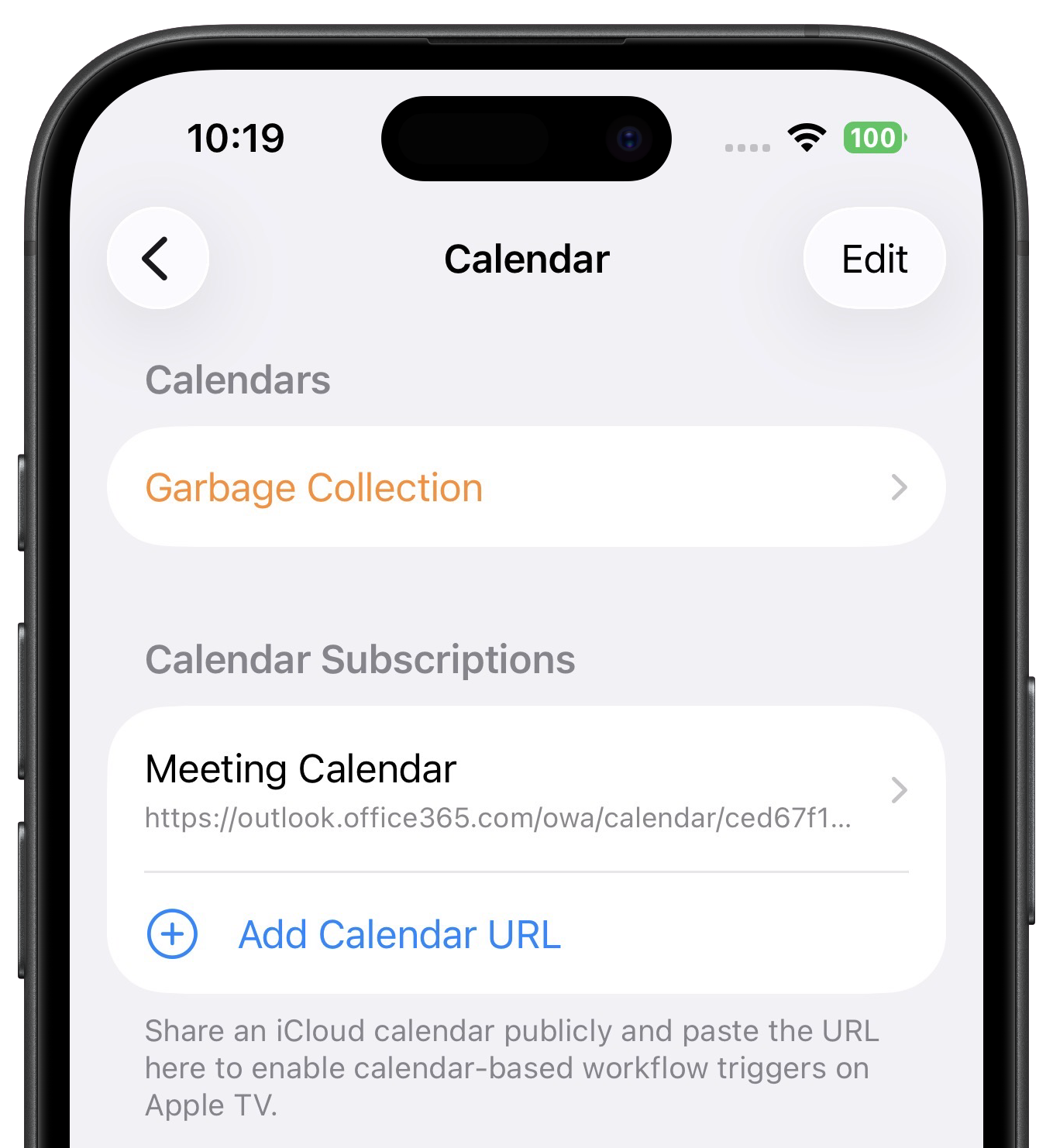
If your Controller Hub runs on an Apple TV, there’s a catch: tvOS has no calendar access. Instead, you use a calendar subscription via URL. Go to "Settings" > "Integrations" > "Calendar" > "Calendar Subscriptions" in Controller and tap "Add Calendar URL". Enter a name (e.g. "Meetings") and paste the URL.
For iCloud calendars: open the Calendar app on your iPhone, tap "Calendars" at the bottom, then tap the info button (i) next to the desired calendar. Enable "Public Calendar" and tap "Share Link". Paste the generated URL into the Calendar Subscriptions in Controller. For other providers like Google Calendar or Outlook, you can find the ICS URL in the respective calendar settings of the provider.

Create Start Events
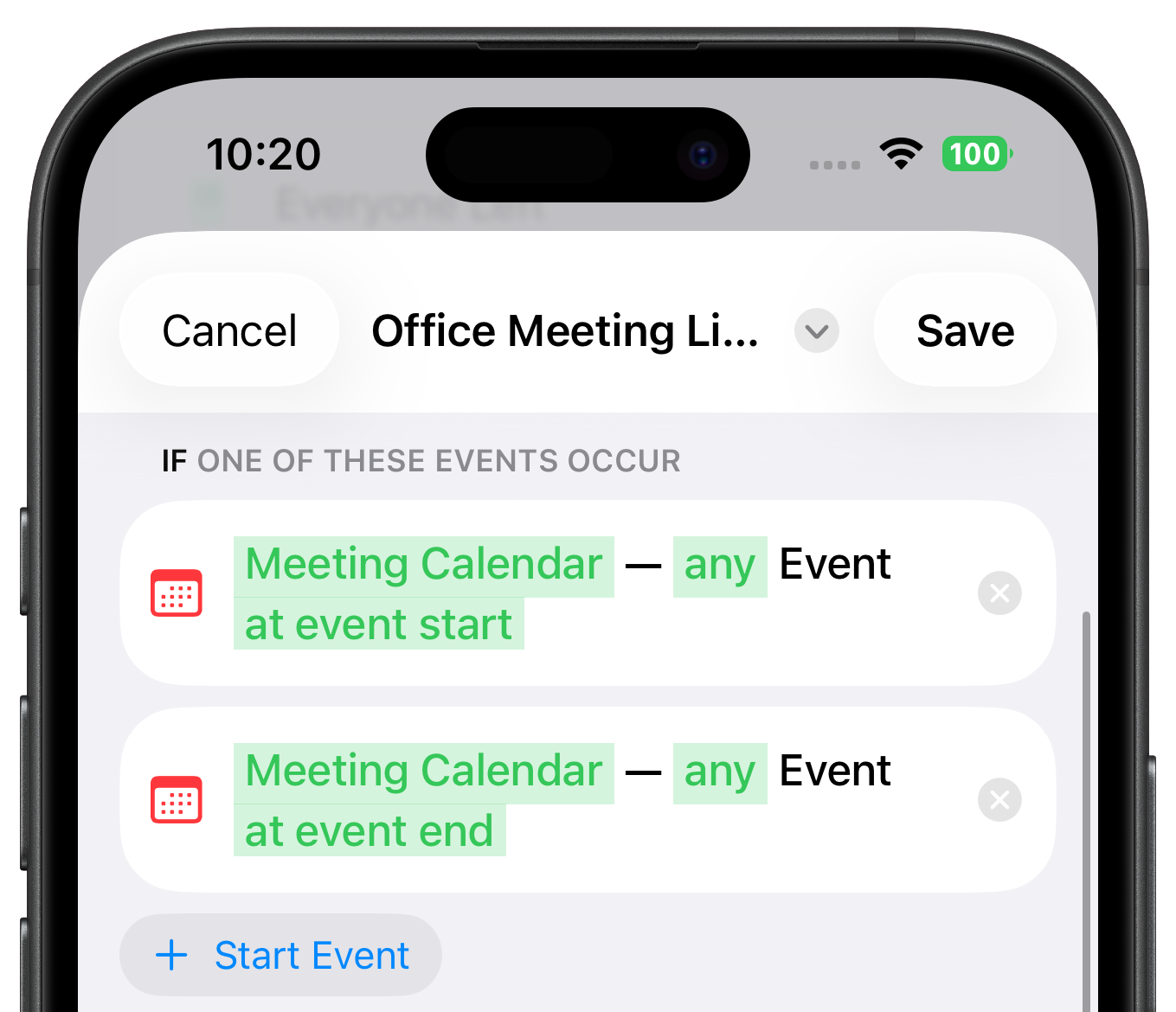
Create a new workflow and tap "Add Start Event". Under Calendar, select "Event starts". Choose your meeting calendar and set the match type to "Any Event" so the workflow triggers for every event. Add a second start event: this time select "Event ends", also with your meeting calendar and "Any Event". Both start events trigger the same workflow. In the next step, we’ll use an If/Else branch to define what happens for each event.
Steps
Add an "If/Else" Step
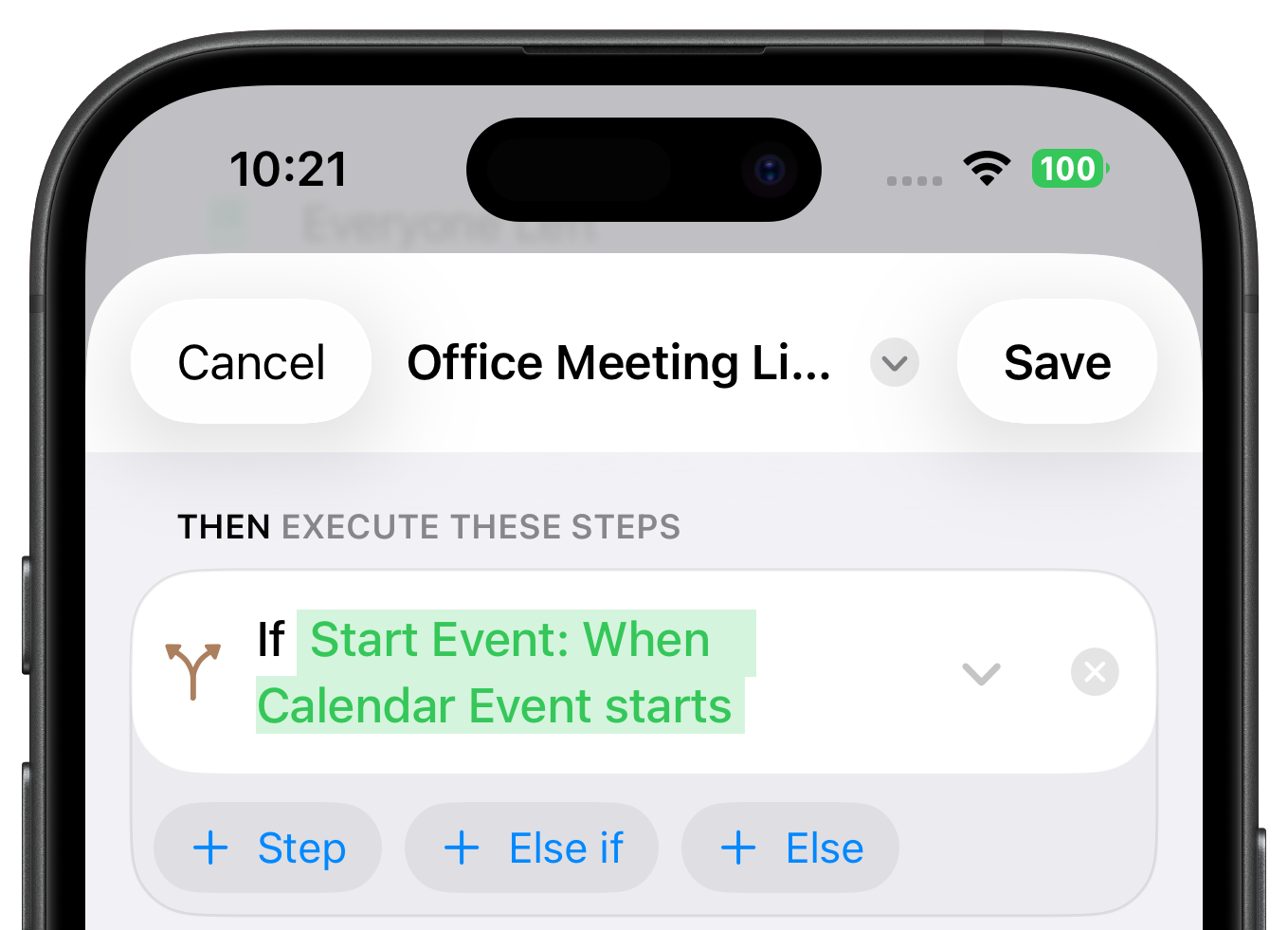
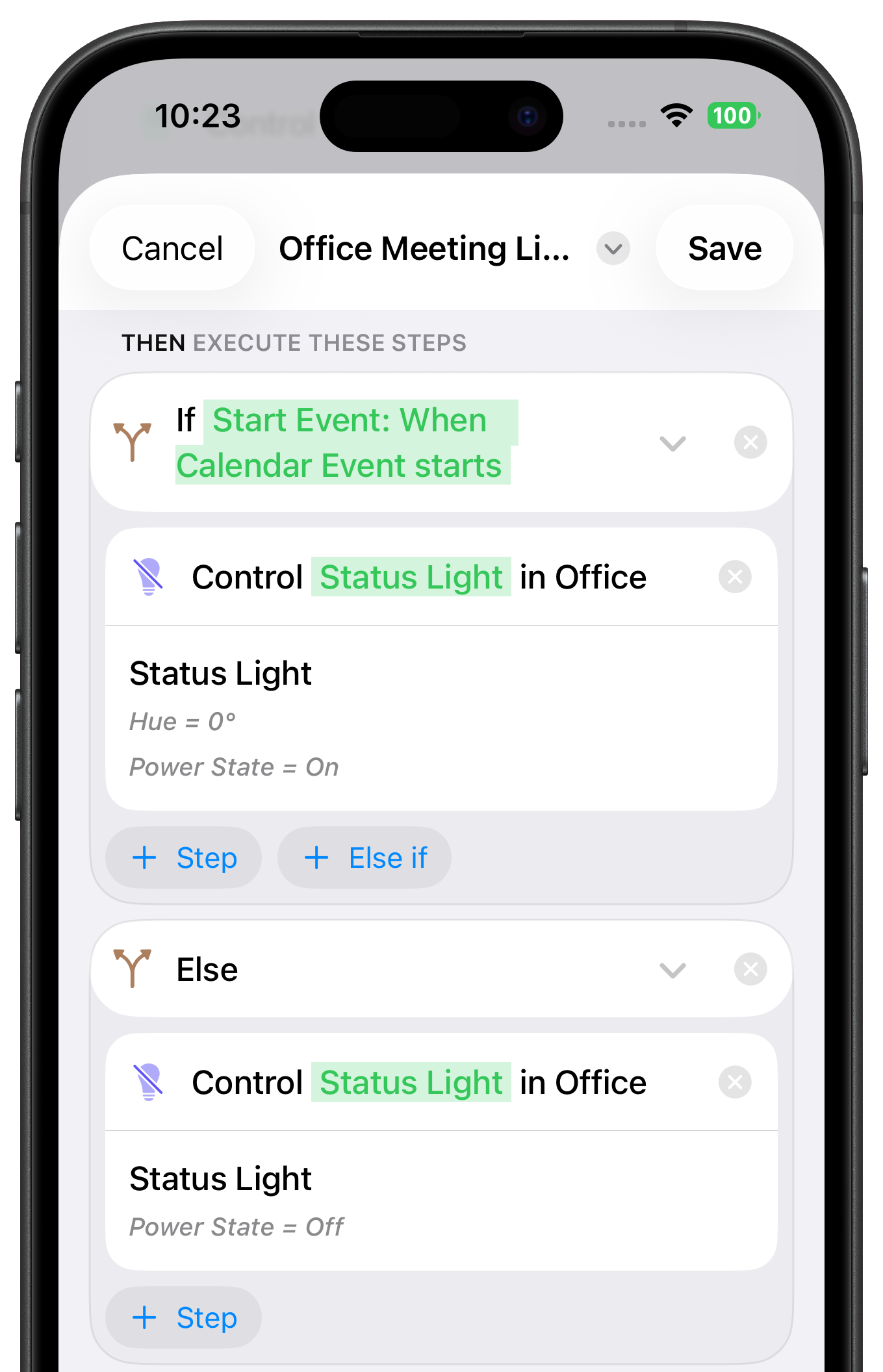
Tap "Add Step" and select "If/Else" under Logic. As the condition, choose "Start event condition". This lets the workflow check which start event triggered it. Select the "Event starts" start event as the condition.
In a Meeting: Turn Light Red
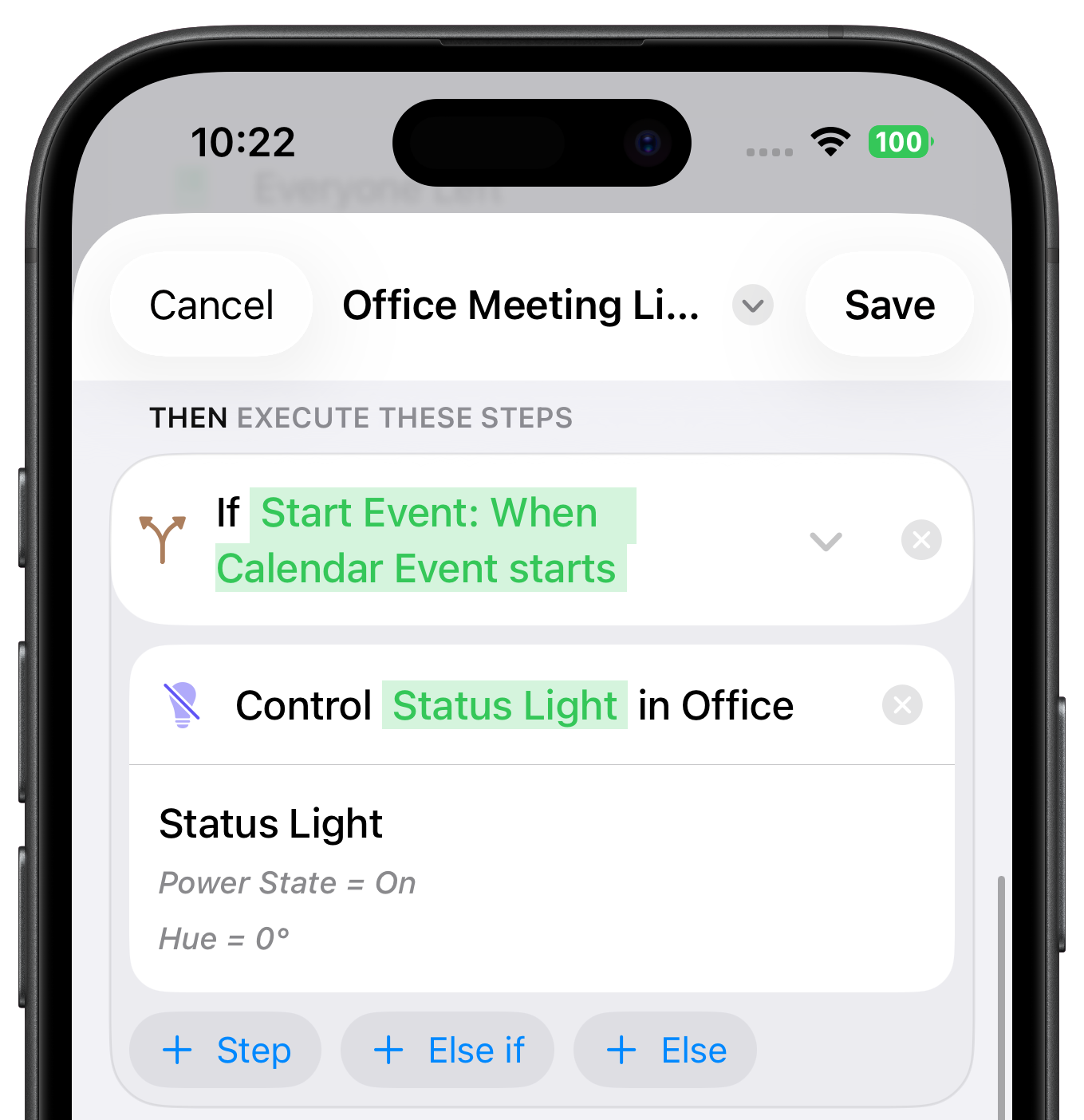
In the "If" branch (Event starts): tap "Add Step" and select "Control Accessory". Choose your color-capable light, set the color to red, and turn it on. The red light instantly signals your family: please do not disturb.
Meeting Over: Turn Light Off
In the "Else" branch (Event ends): tap "Add Step" and select "Control Accessory" again. Choose the same light and turn it off. As soon as your meeting ends, the light automatically turns off and your family knows you’re available again.

Get Inspired
Meeting Light
Uses light color to show whether you’re in a meeting.
Waste Calendar
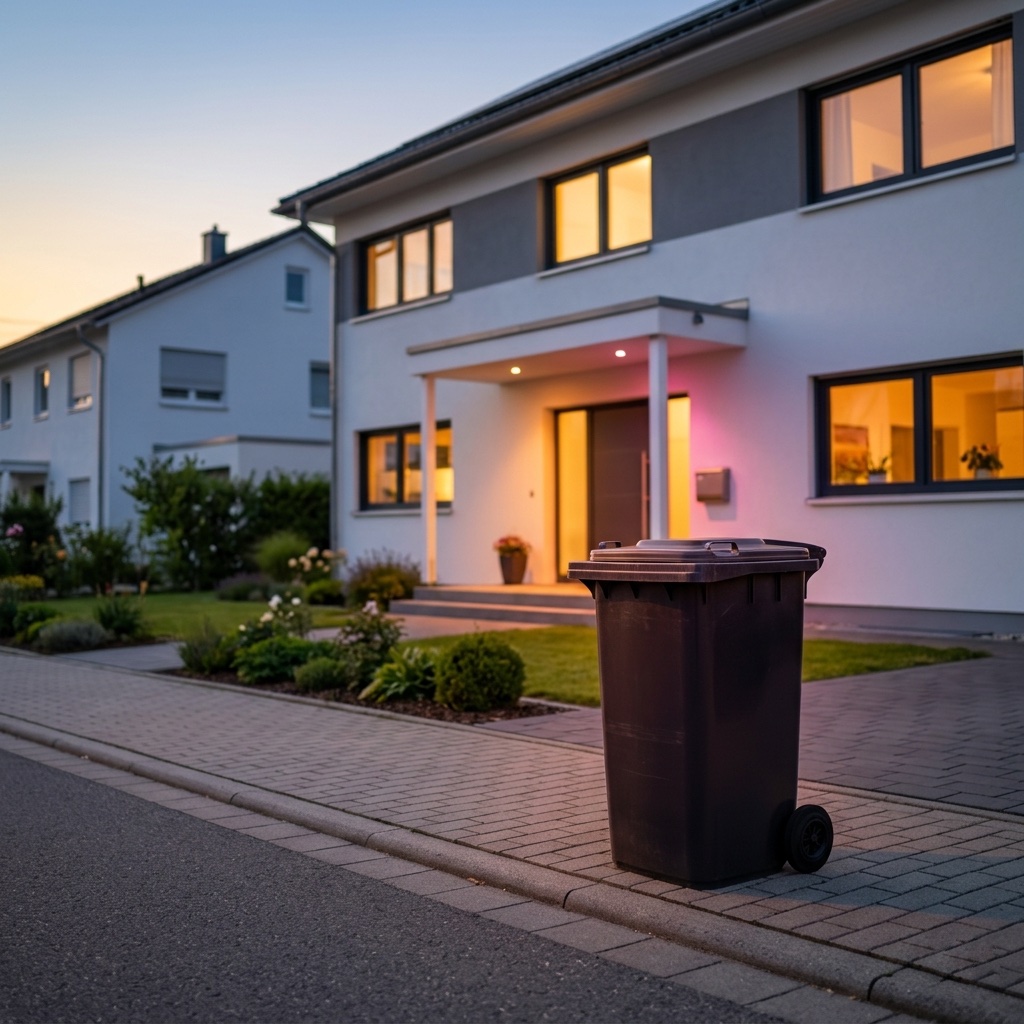
Never forget the bin again – with colored light and speech.

Carbon Dioxide Alert
Get notified when CO₂ levels exceed 1000 ppm.

Location-Based Workflow
Automate your routines based on where you are.
Laundry Done Alert
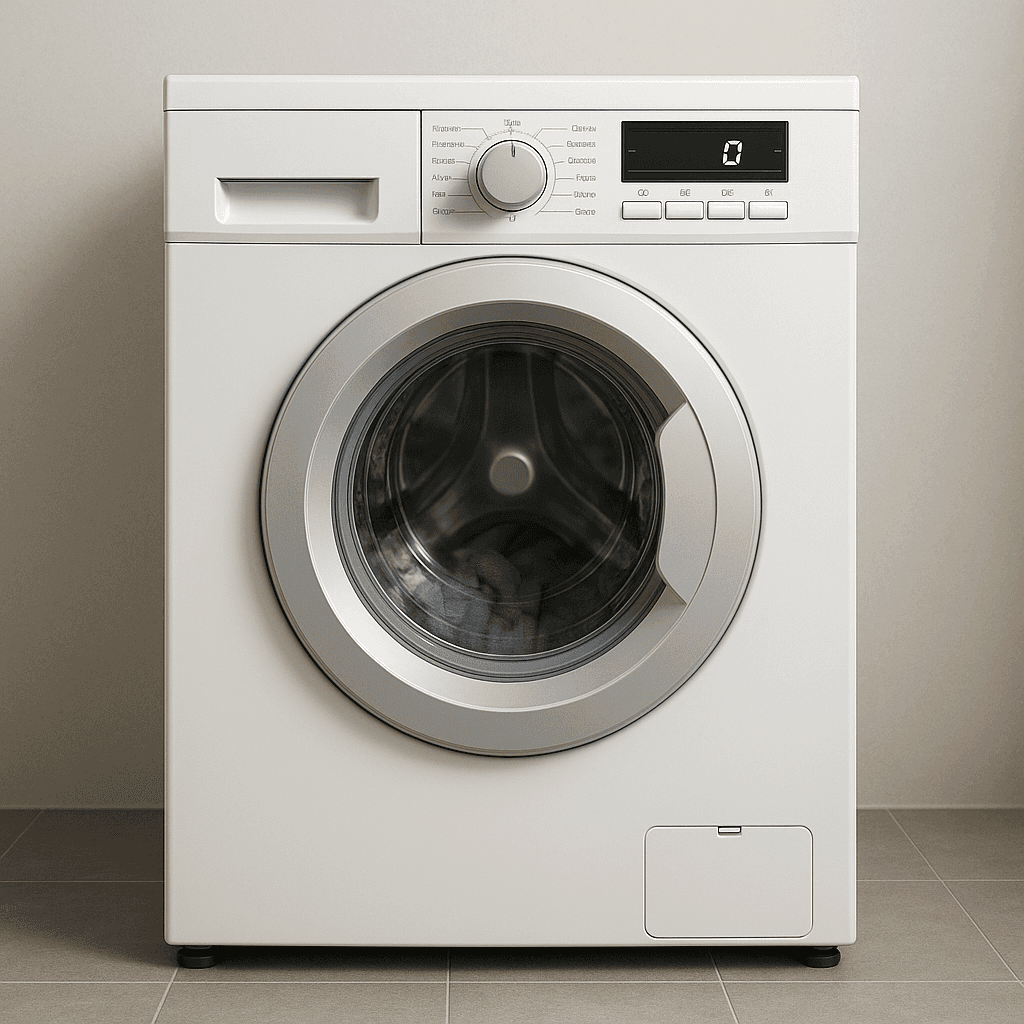
Receive a notification when your washing machine has finished.

Beat the Heat
Automatically close your blinds on hot days.
Wake-Up Light
Use any Apple Home Lamp as a Wake-Up Light.
Irrigation Schedule
Keep your garden green.
Control Lights with Multiple Motion Sensors
For large or irregularly shaped spaces.
Stepwise Brightness Control via Button
Control light brightness step by step.
Custom Notification with Live Camera Feed
Open the camera stream instantly.
Smart Bathroom Fan Control
Make your fan truly intelligent.
New Mail Notification
Get notified when new mail arrives.
Integrate Speakers into Workflows
Control volume, play music, or pause playback.
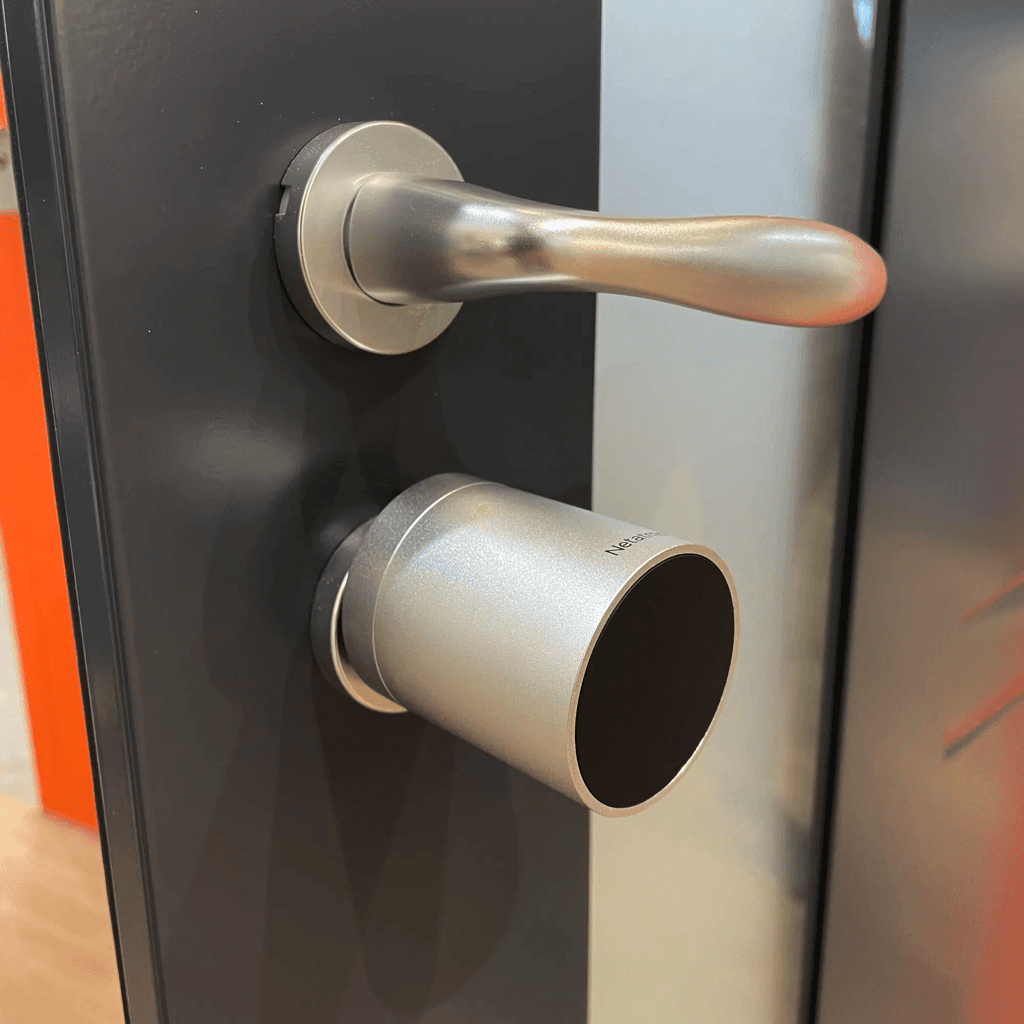
Battery Warning
Get battery alerts when they matter.
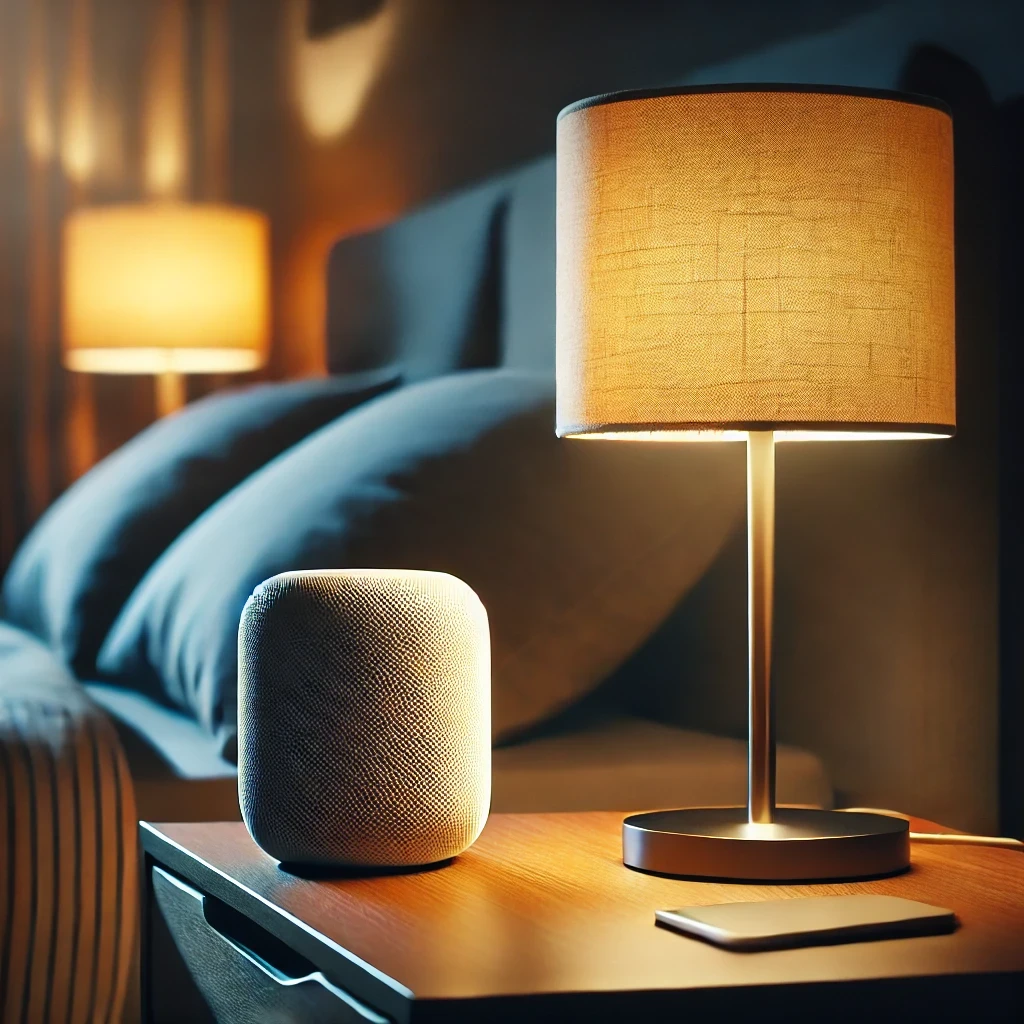
Sleep Timer
Use a sleep timer with Apple Home.

Execute Workflow Only Once a Day
Ensures the workflow runs only once.
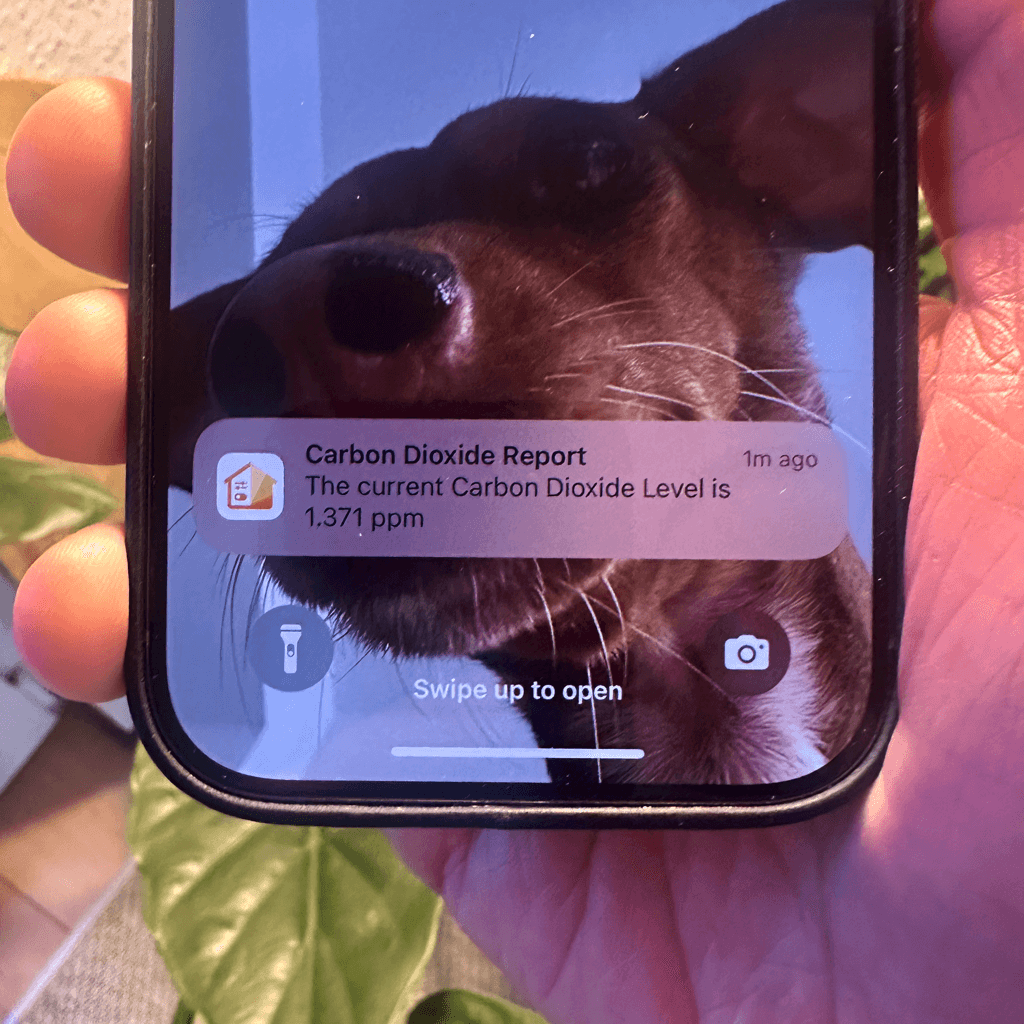
Accessory Values in Notifications
Send notifications featuring real-time accessory values.
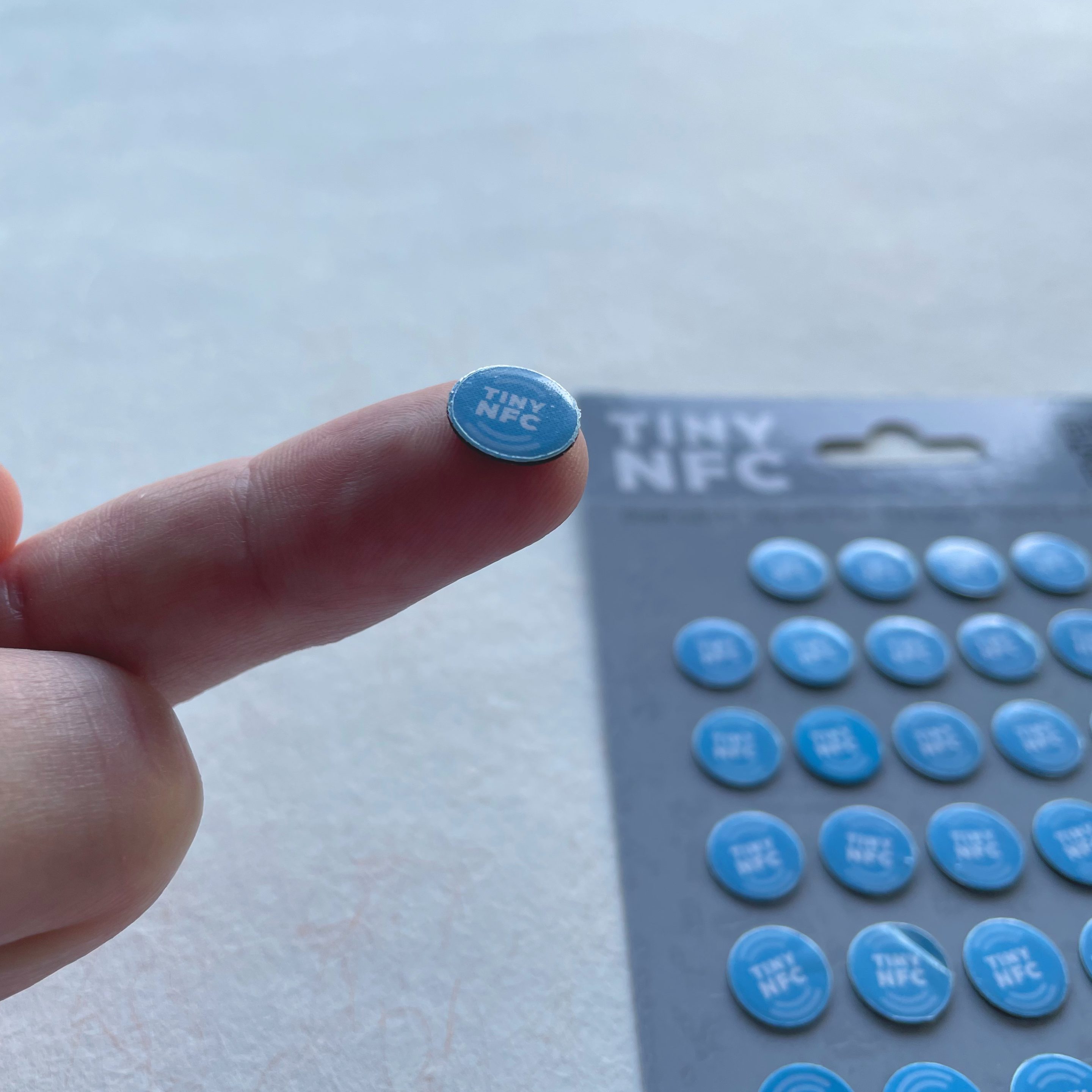
NFC Tags
Automate Apple Home Accessories with NFC.
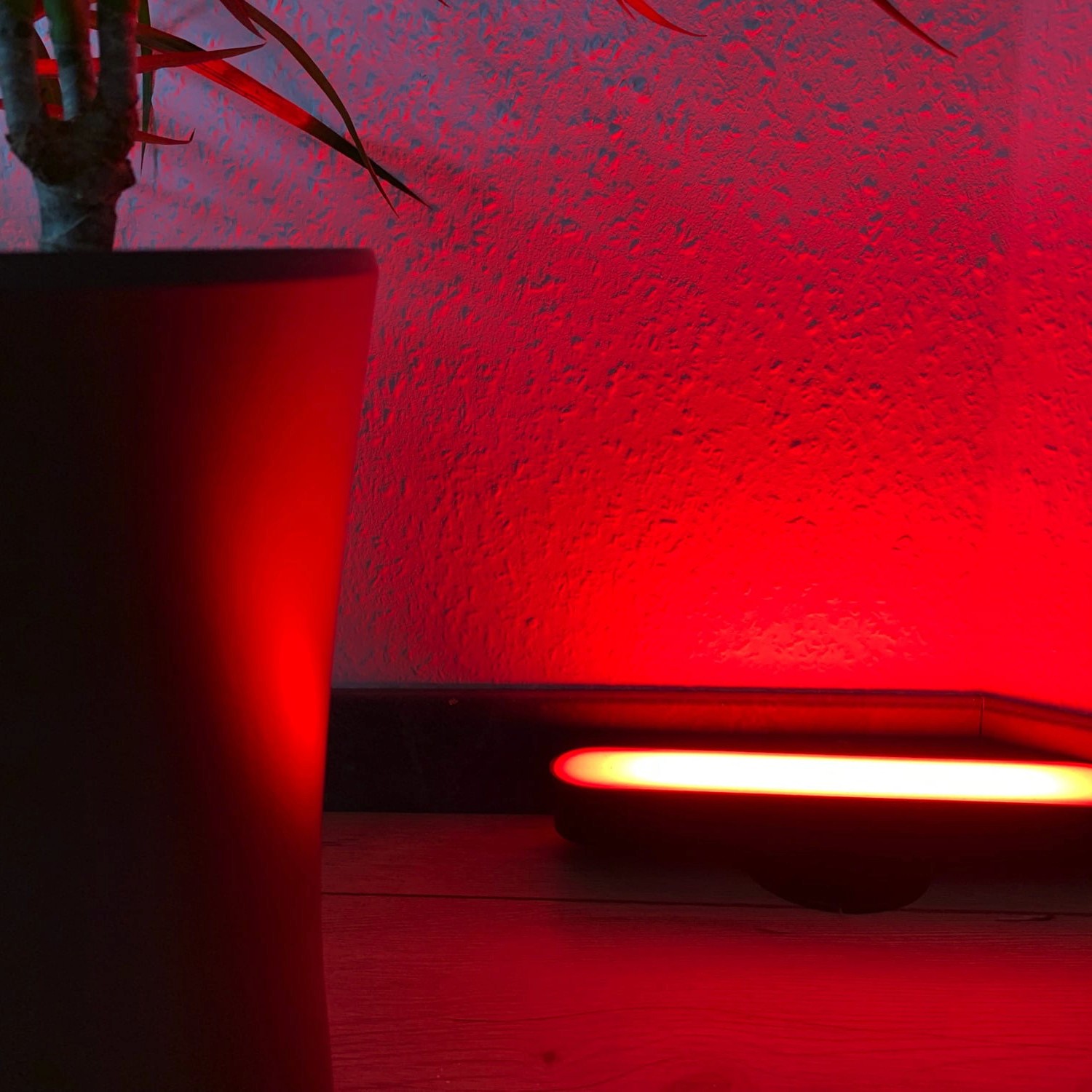
Blink Lights
Make a light blink and effortlessly return it to its original state.
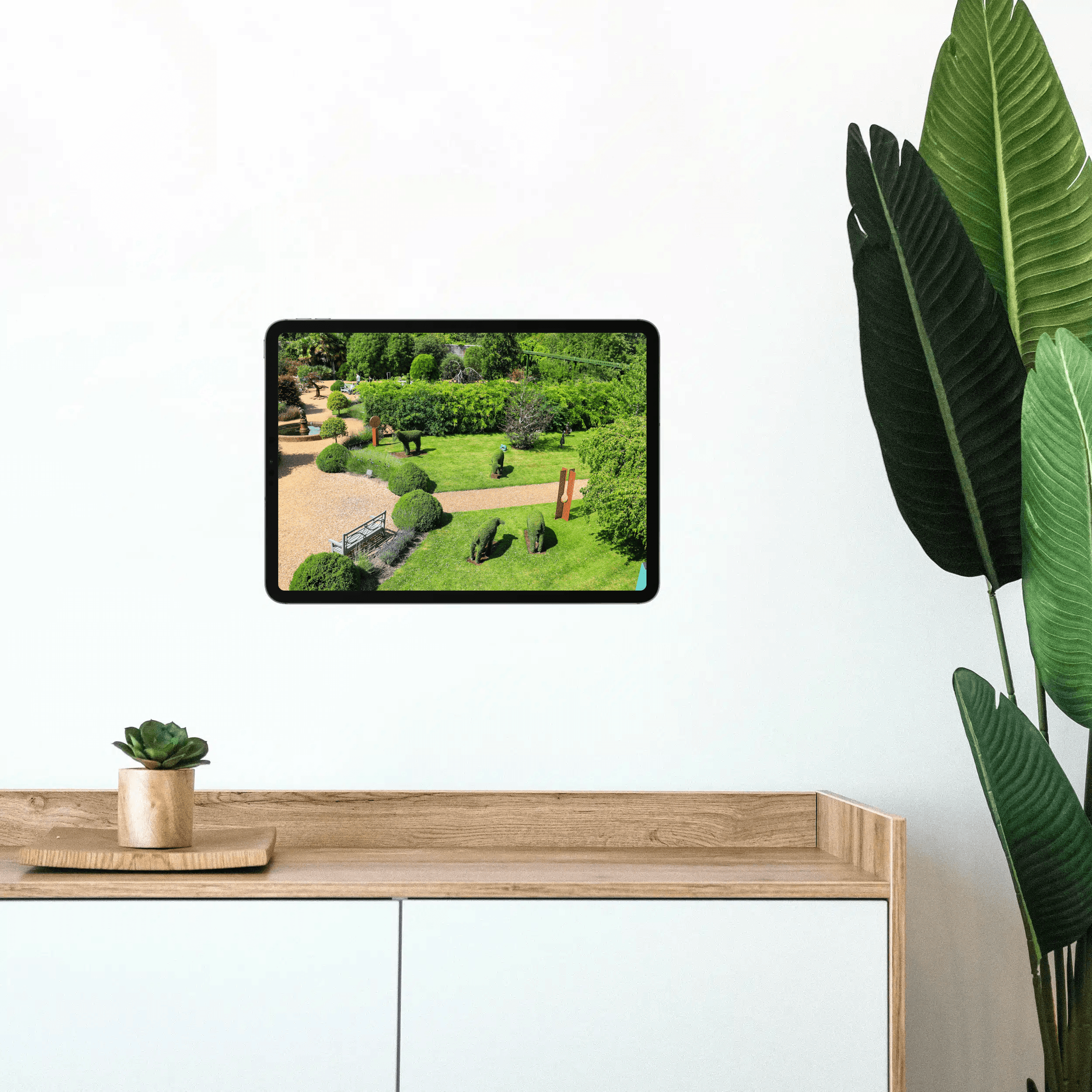
Display Camera When Motion Is Detected
Automatically display the camera livestream whenever motion is detected.
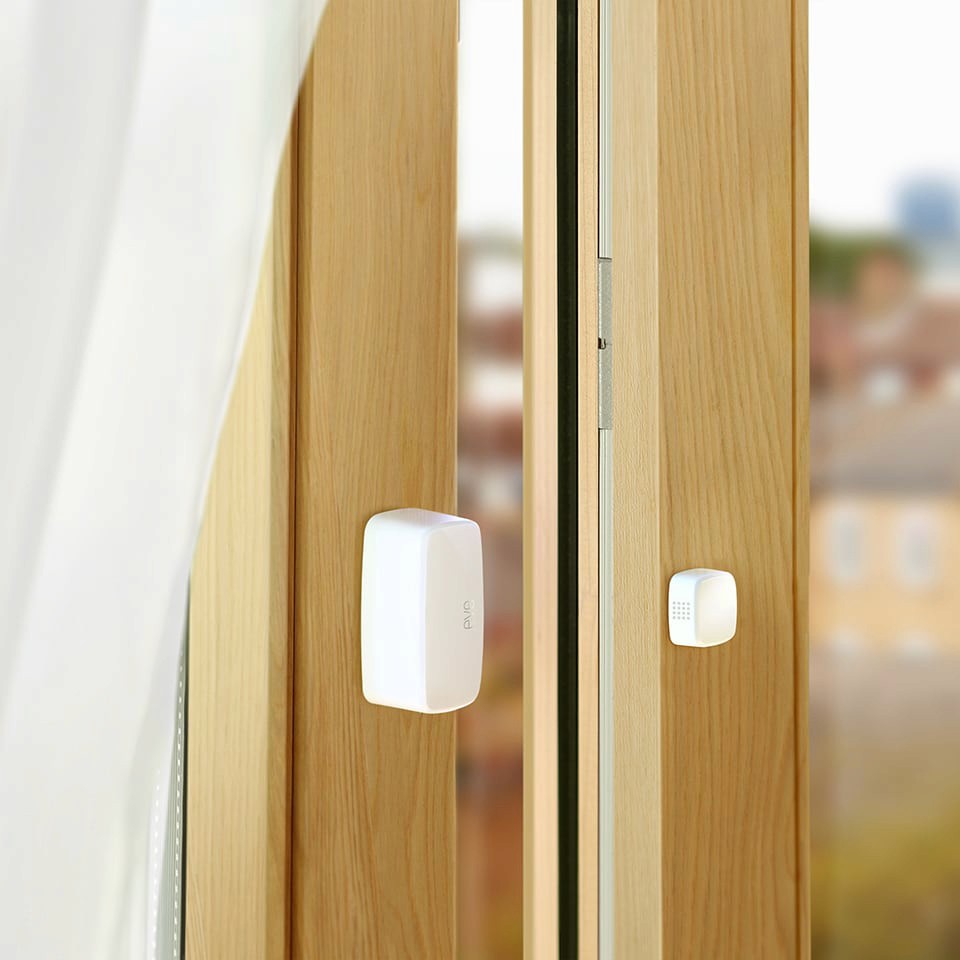
Open Window Reminder
Get a reminder if you forget to close a window after ventilating.
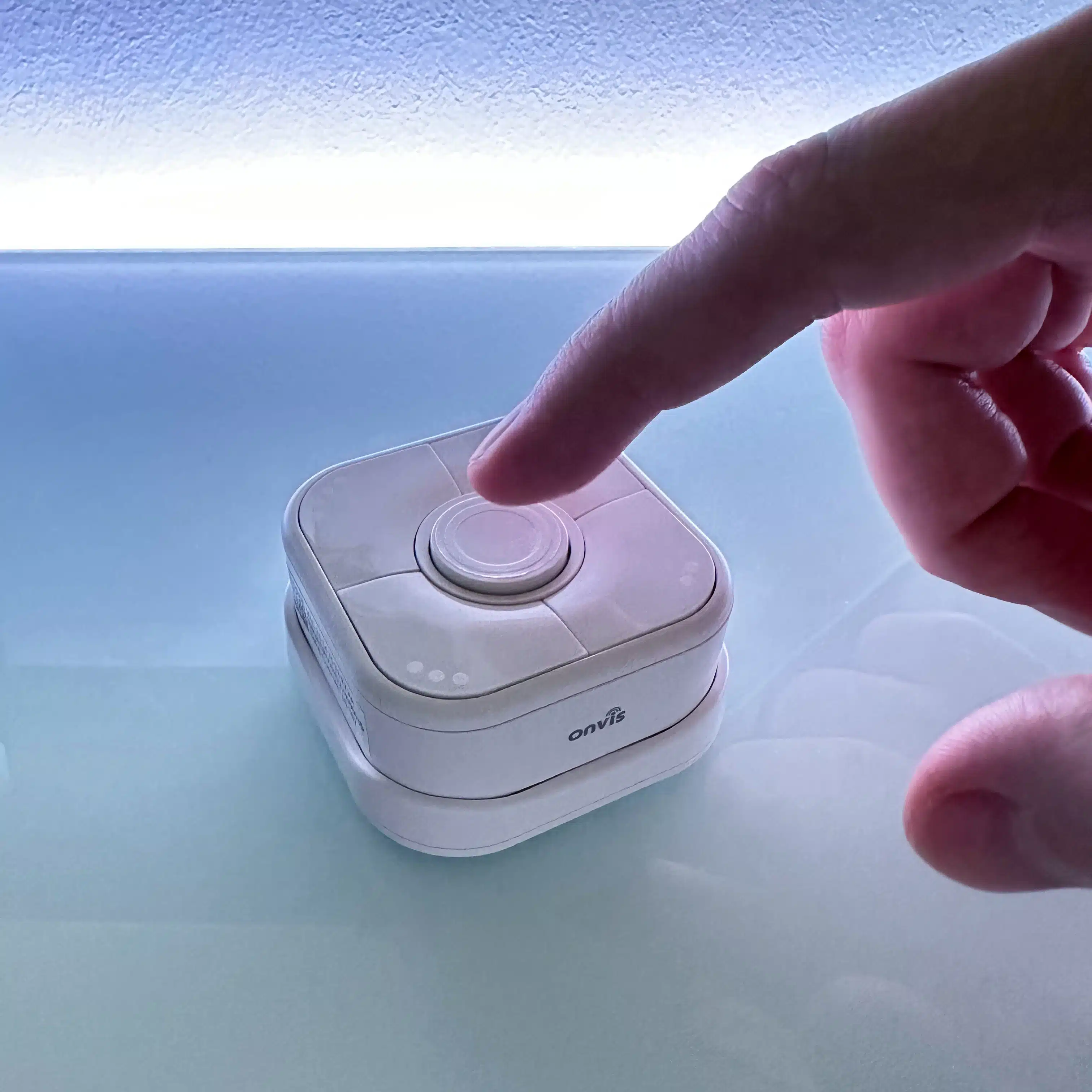
Toggle Lamp
Easily toggle a lamp using a single switch.
Turn Light Off Using Motion Sensor
Efficiently control your lighting with a motion sensor.